
Office 365
Configure Microsoft Azure AD and Office 365 API access for SecureOPS monitoring.
Office 365 / Azure AD Integration
This article provides instructions on how to enable a new App in Microsoft portal to collect events and alerts via API calls.
Follow steps detailed below and after completion upload the following info (txt file) to Onehub:
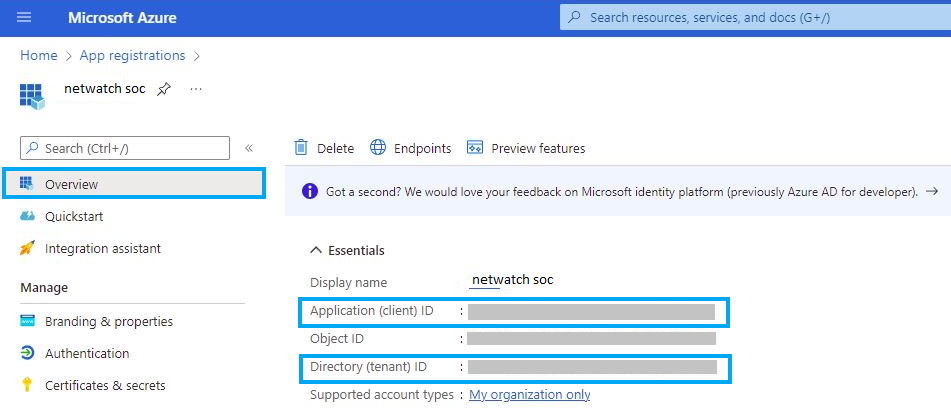
- Directory / Tenant ID.
- Application / Client ID.
- Client secret (value).
Office 365 API requirements
You need the following requirements to access the audit logs of Office 365:
The application (client) ID:
The unique ID of the application created in the Microsoft Azure portal to pull logs from Office 365.
The directory (tenant) ID:
The tenant ID which is the same as the organization ID identifies which Azure Active Directory instance the application sits under.
The client secret:
A shared secret known to both the application and the authorization server.
Setting up Office 365 for monitoring
The Office 365 API provides an endpoint for accessing audit logs in Office 365. You need an application with the right permissions to access the Microsoft API. The following list provides a summary of the steps you need to perform on Microsoft Azure:
-
Registering an app via the Microsoft Azure portal:
This step involves creating an application with unique credentials (client ID, tenant ID, and client secret) in your organization. -
Creating certificates and secrets:
The created application needs to authenticate to the Office 365 Management API to ensure security. This step shows how to create certificates and secrets for the application. -
Enabling API permissions:
The created application needs specific API permissions to request the Office 365 activity events. This step shows how to assign the appropriate permissions required to pull logs from the Office 365 Management API.
Registering an app via the Azure portal
To authenticate with the Microsoft identity platform endpoint, you need to register an app in your Azure portal.
Steps
- Sign in to your Azure portal.
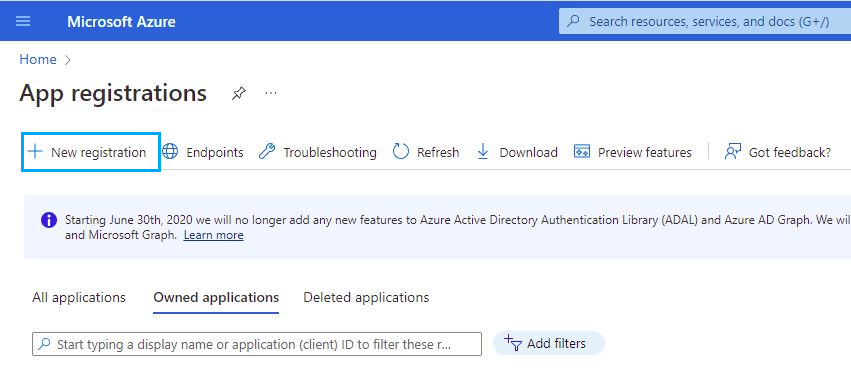
- Click on New registration in the Microsoft Azure portal app registrations section.
Fill in the name of your application, choose the desired account type, and click on Register.
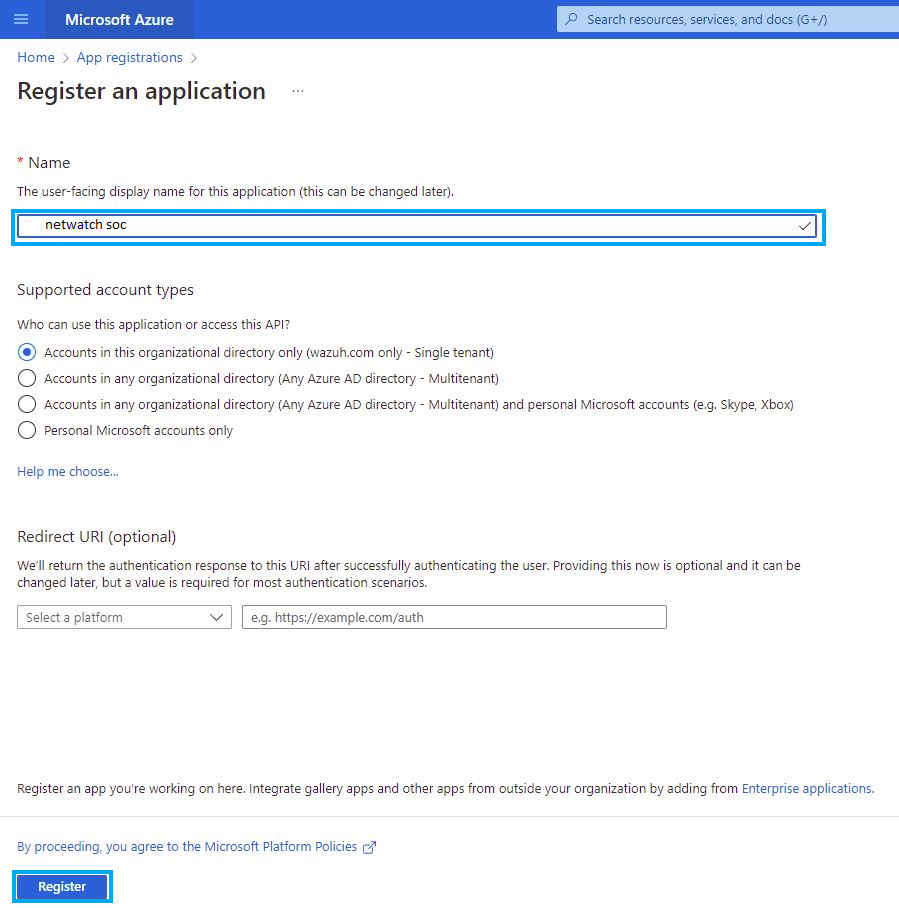
At this point, the application is registered.
Click on the Overview tab on the menu to view and copy the application's client and tenant IDs.
Creating certificates and secrets
The application requires a certificate and secret to use during the authentication process.
Steps
Navigate to Certificates & secrets menu and click New client secret. Fill in the Description and Expires fields under the Add a client secret section.
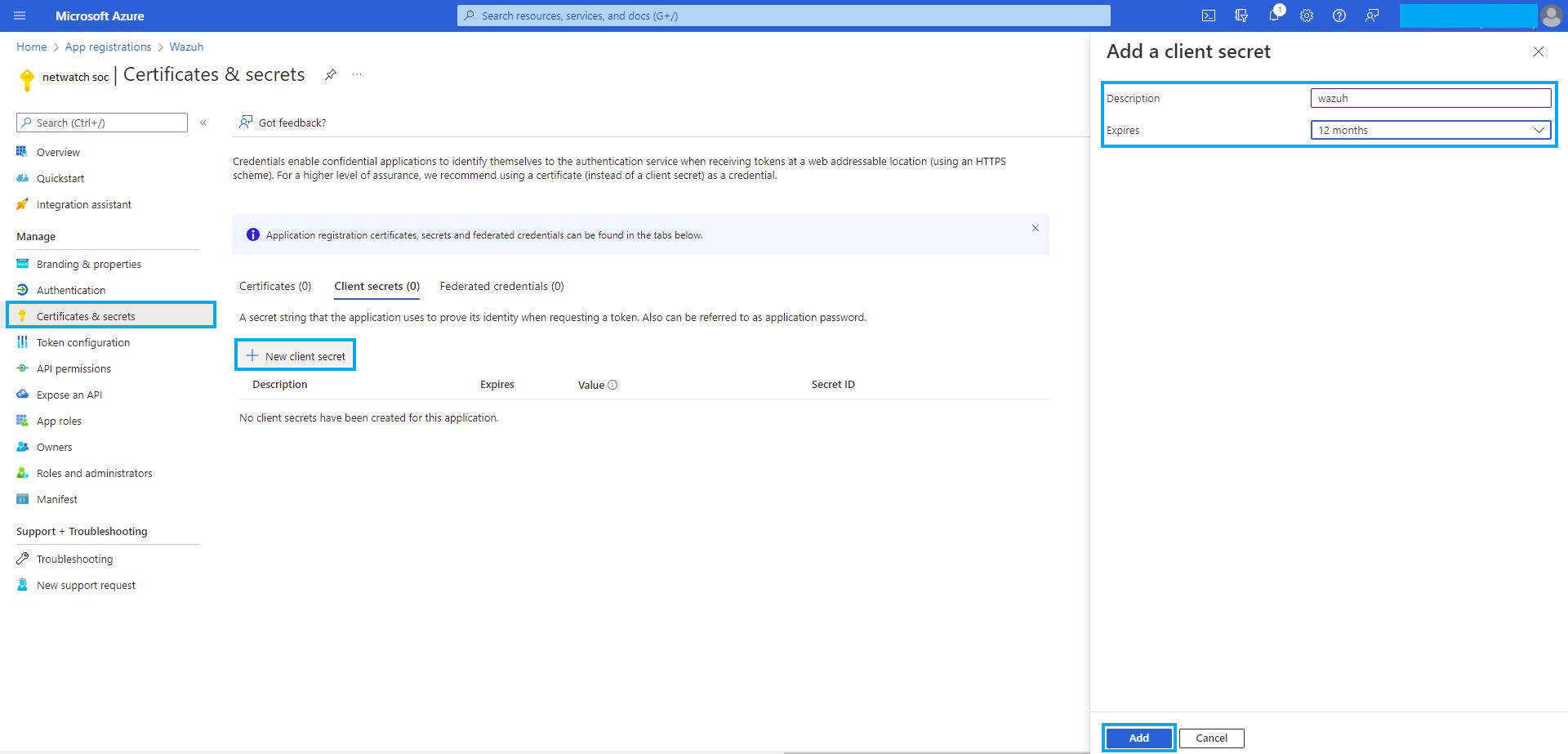
Copy and save the value of the secret under the Client secrets section.
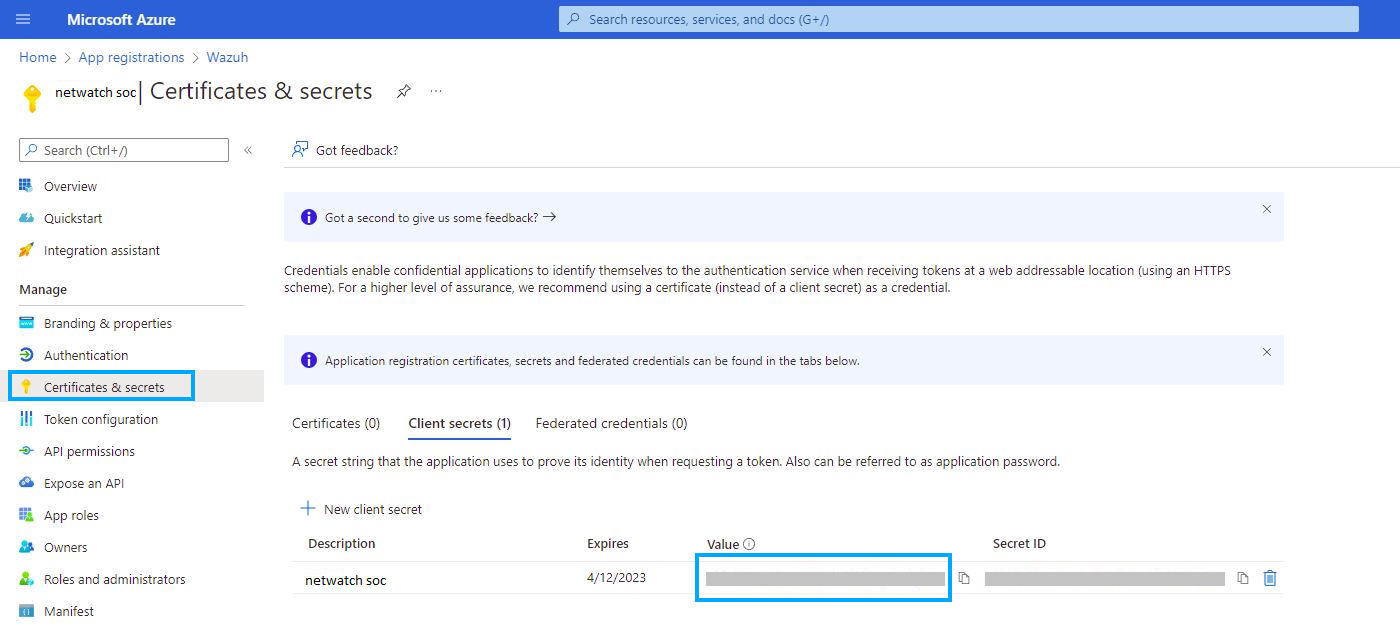
Note: Make sure you write it down because the web interface won't let you copy it afterward.
Enabling API permissions
The application requires specific API permissions to request Office 365 activity events. In this case, we are looking for permissions related to the https://manage.office.com resource.
Steps
Navigate to the API permissions menu and choose Add a permission. Select Office 365 Management APIs and click on Application permissions. Add the following permissions under the ActivityFeed group:
- ActivityFeed.Read: Read activity data for your organization.
- ActivityFeed.ReadDlp: Read DLP policy events including detected sensitive data.
Click on the Add permissions button.
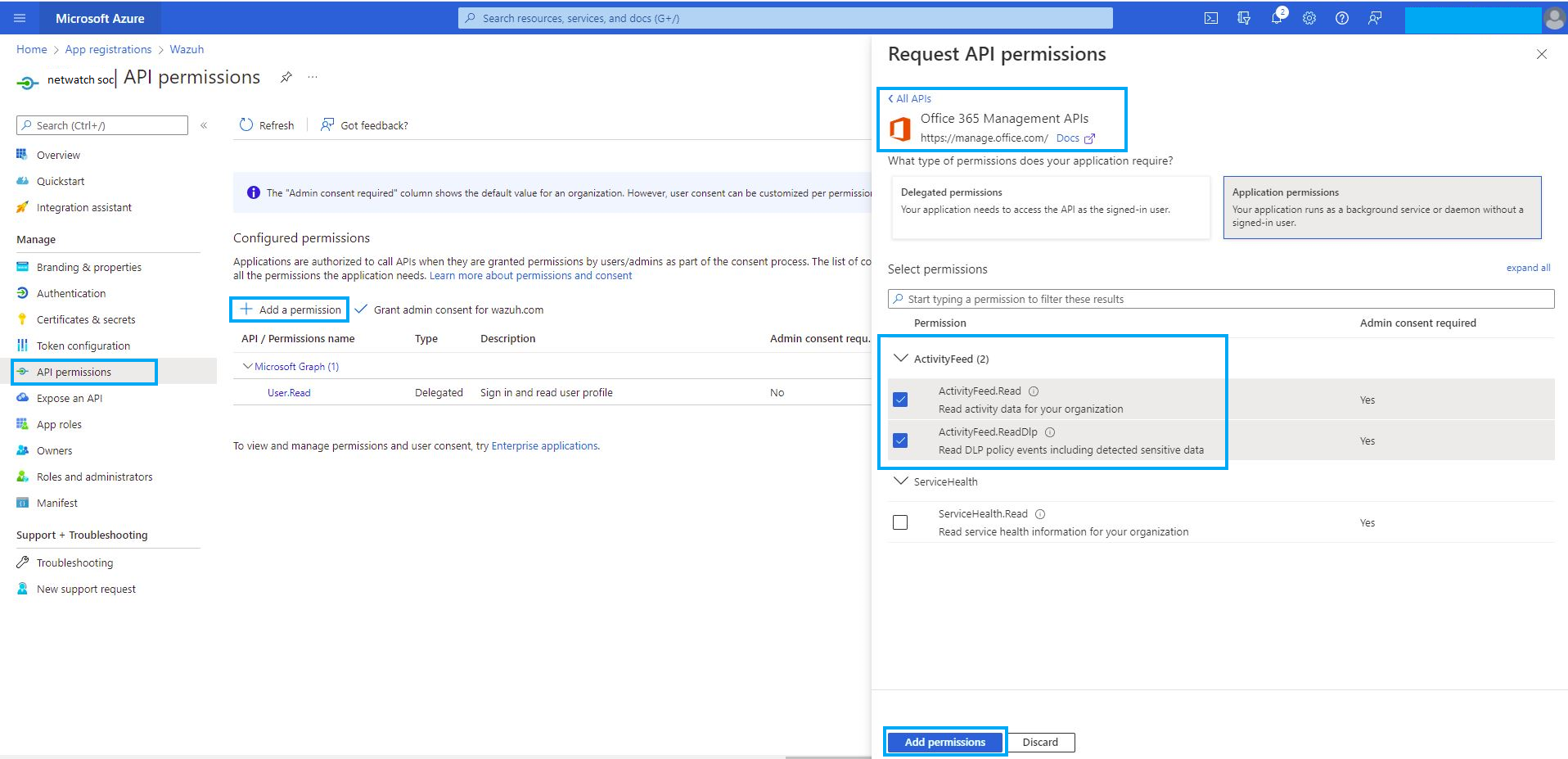
Admin consent is required for API permission changes.

For assistance or validation of your configuration, please contact the Netwatch support team.