API Configurations
M365 API Credential for Netwatch Monitoring
Step-by-step guide on generating and configuring M365 API credentials for Netwatch monitoring.
Required Roles
To perform the following steps, you must have one of the following roles:
- Microsoft 365 Global Admin
- SharePoint Admin
- LMS Admin
Steps to Generate API Credentials
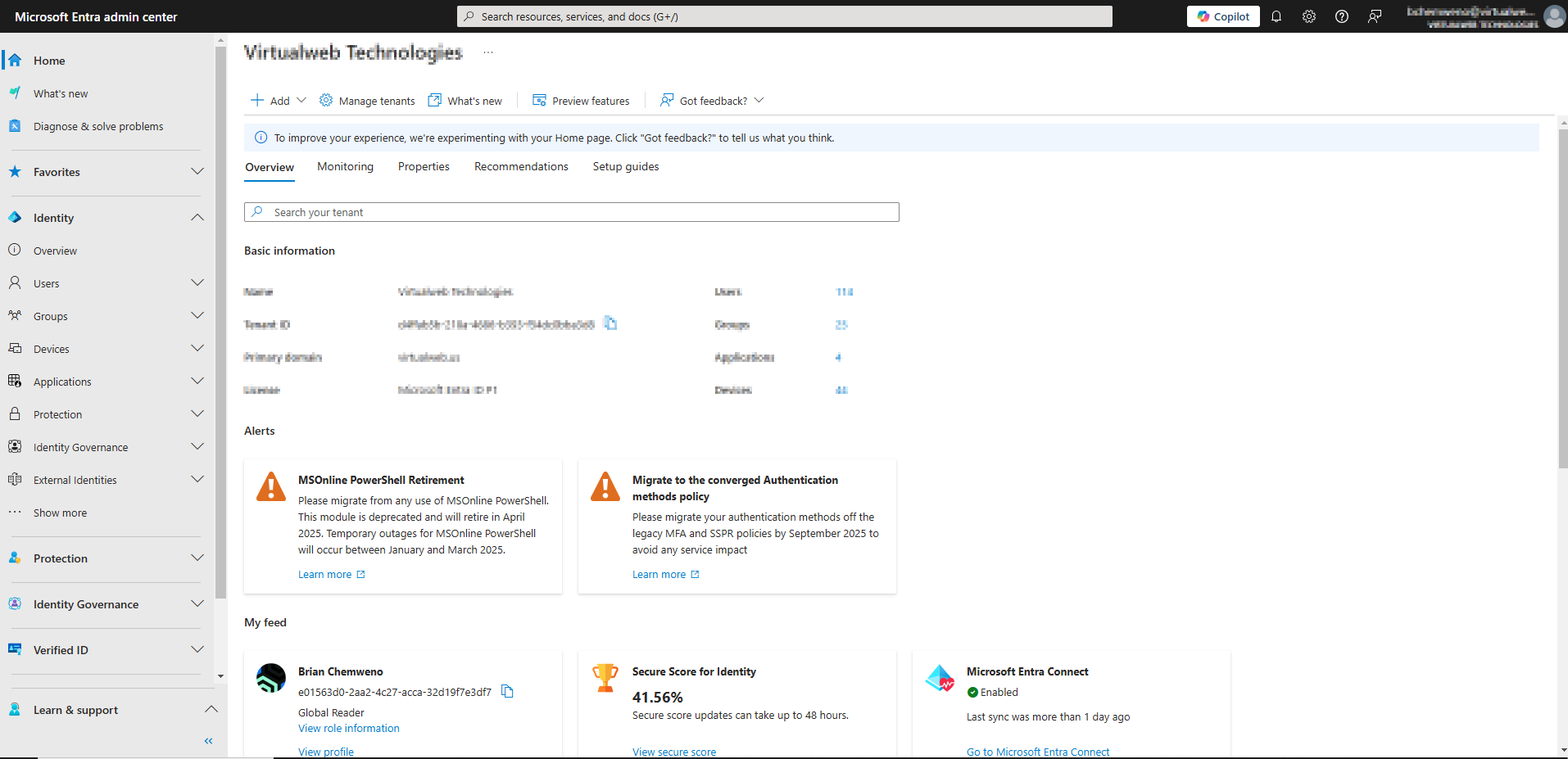
1. Access Microsoft Entra
- Navigate to https://entra.microsoft.com.
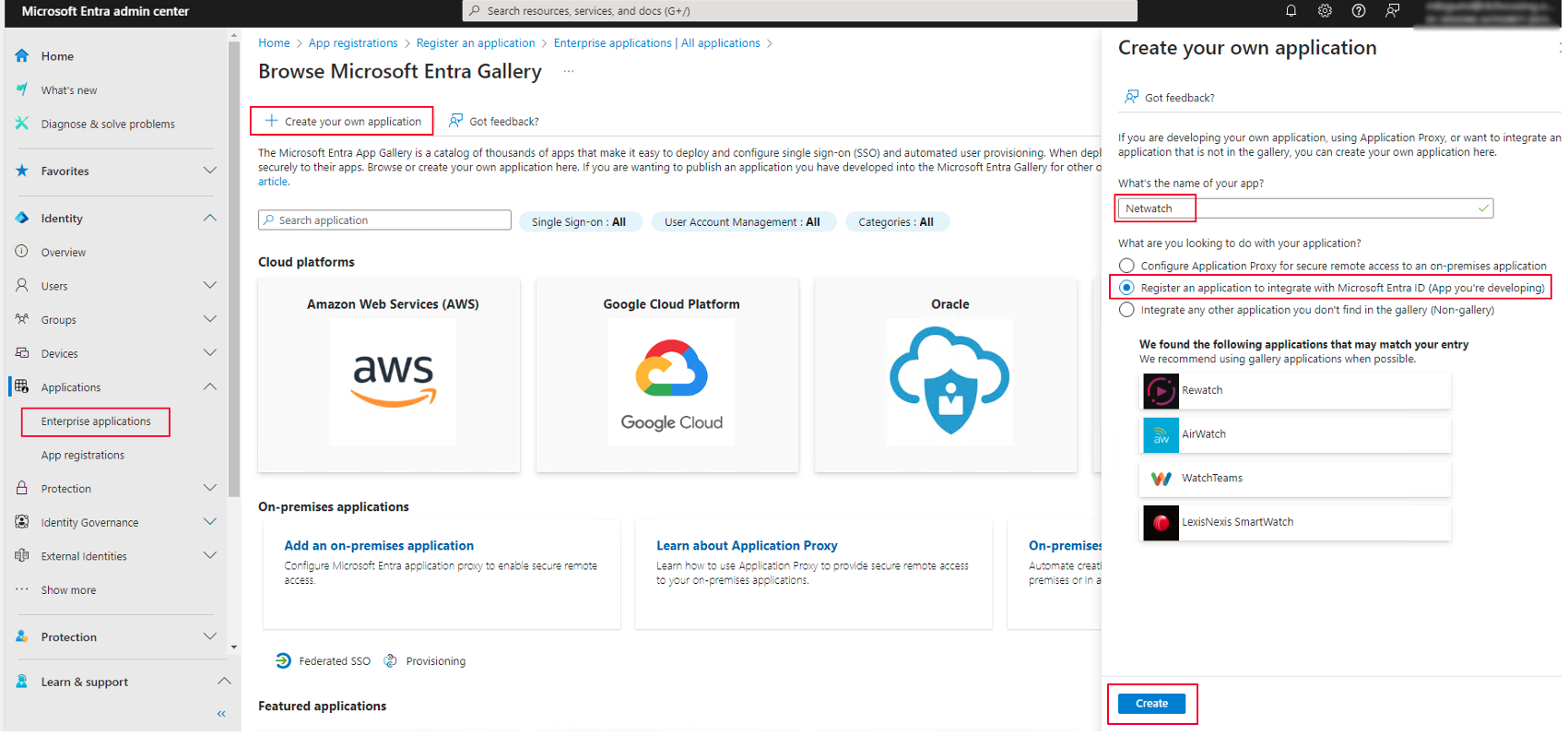
2. Create a New Enterprise Application
- Go to Applications > Enterprise Applications > Create Your Own Application.
- Name the application Netwatch.
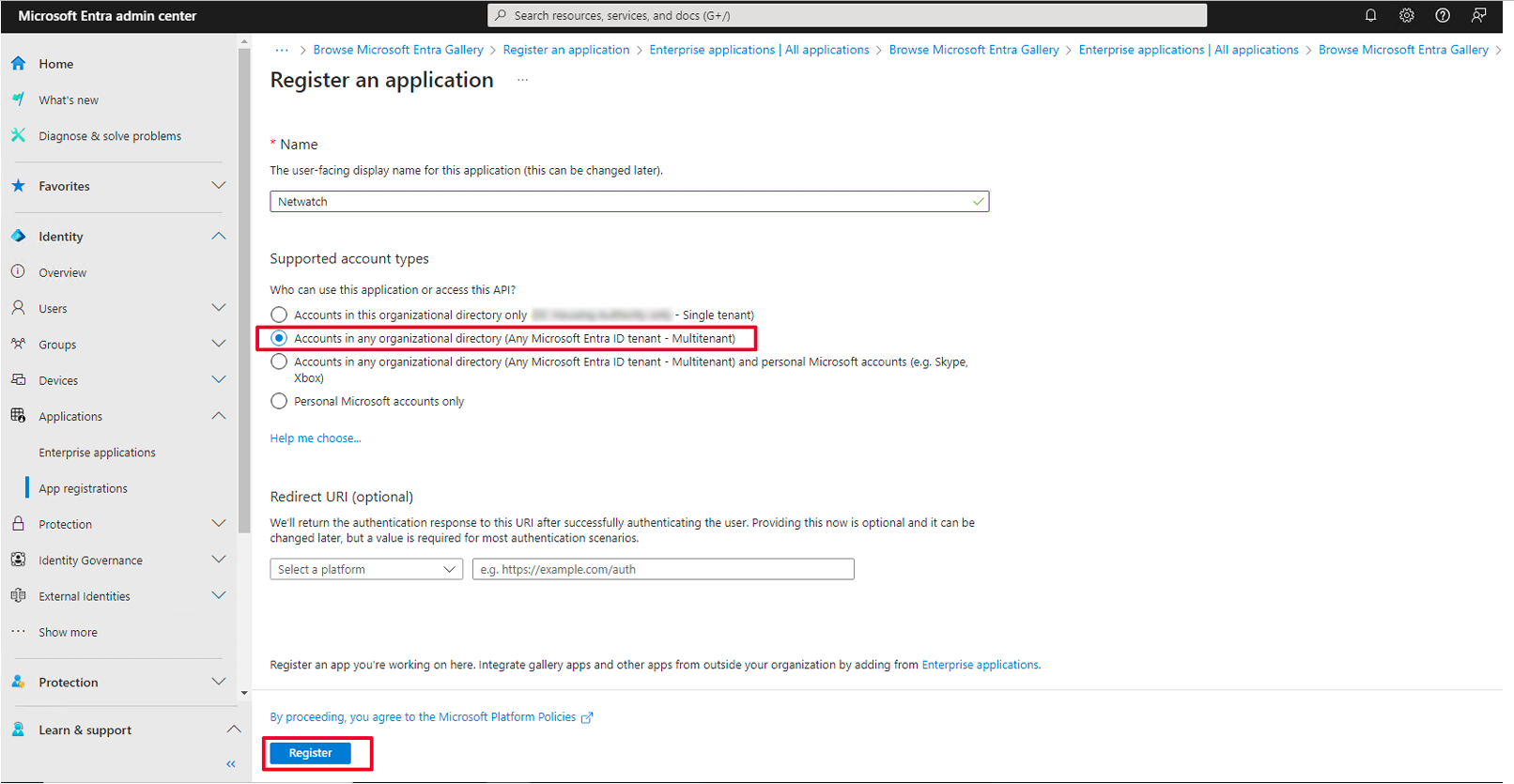
3. Register the Newly Created Application
- Navigate to Applications > App Registrations > All Applications.
- Select New Registration and register the application.
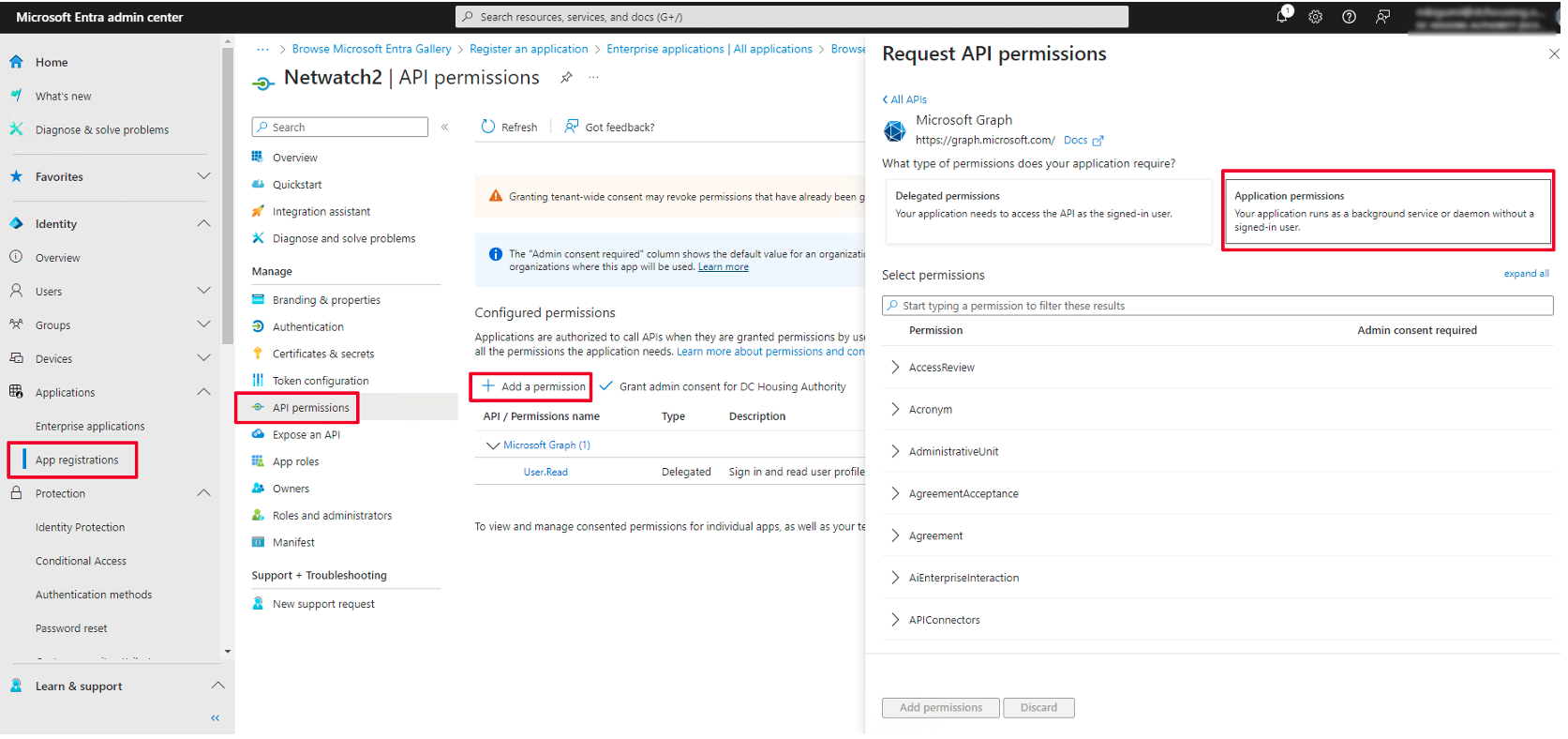
4. Grant API Permissions
- Go to Application Registrations.
- Select the Netwatch application.
- Navigate to API Permissions > Add Permissions > Microsoft Graph.
- Choose the required permissions based on the monitoring level needed.
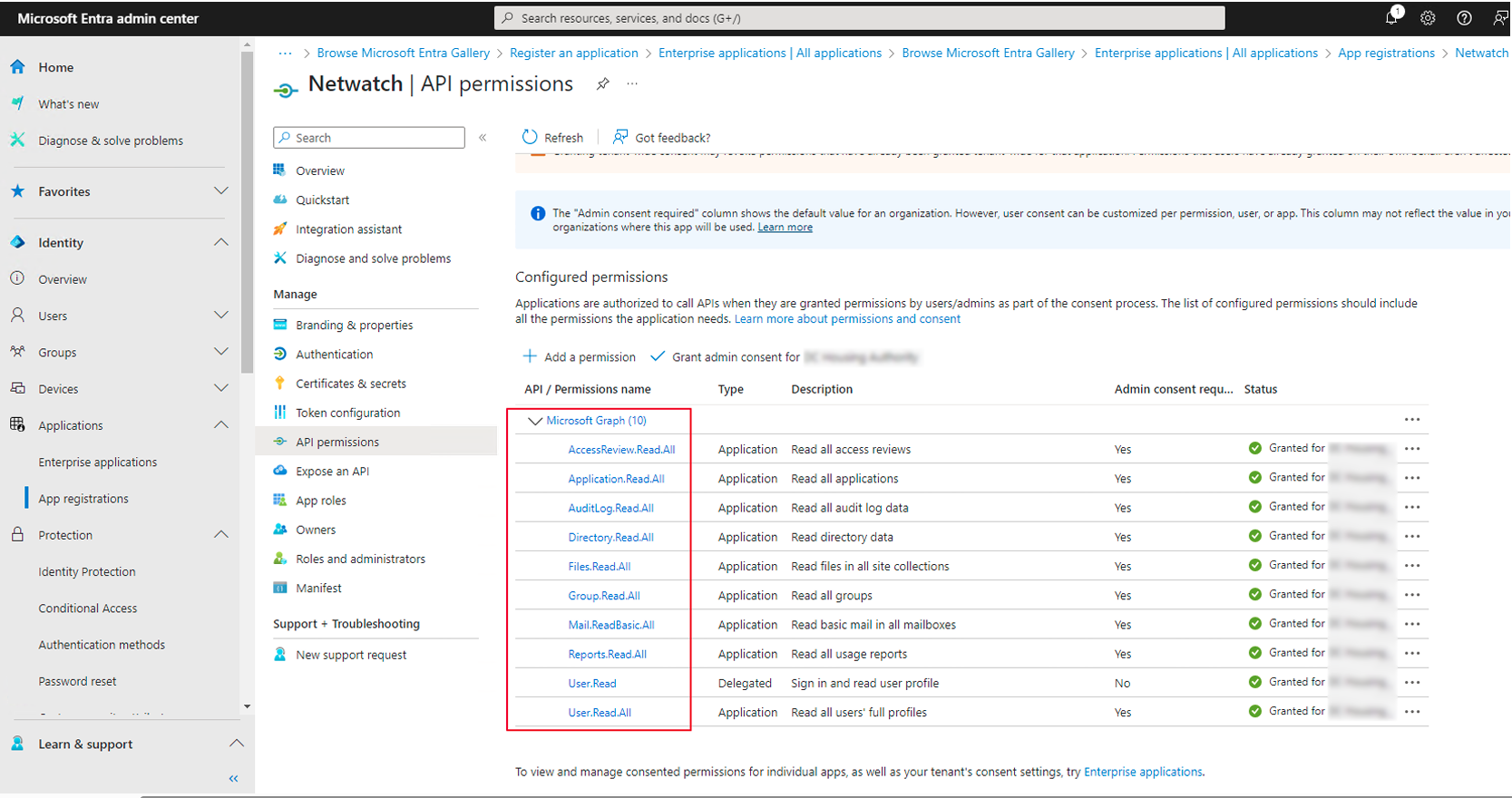
5. Recommended API Permissions
The following permissions allow monitoring of key aspects within the M365 environment:
User.Read.All– Read user profiles.AuditLog.Read.All– Read audit log activities.Directory.Read.All– Read directory data.Reports.Read.All– Read all reports.
6. Generate Client Secret
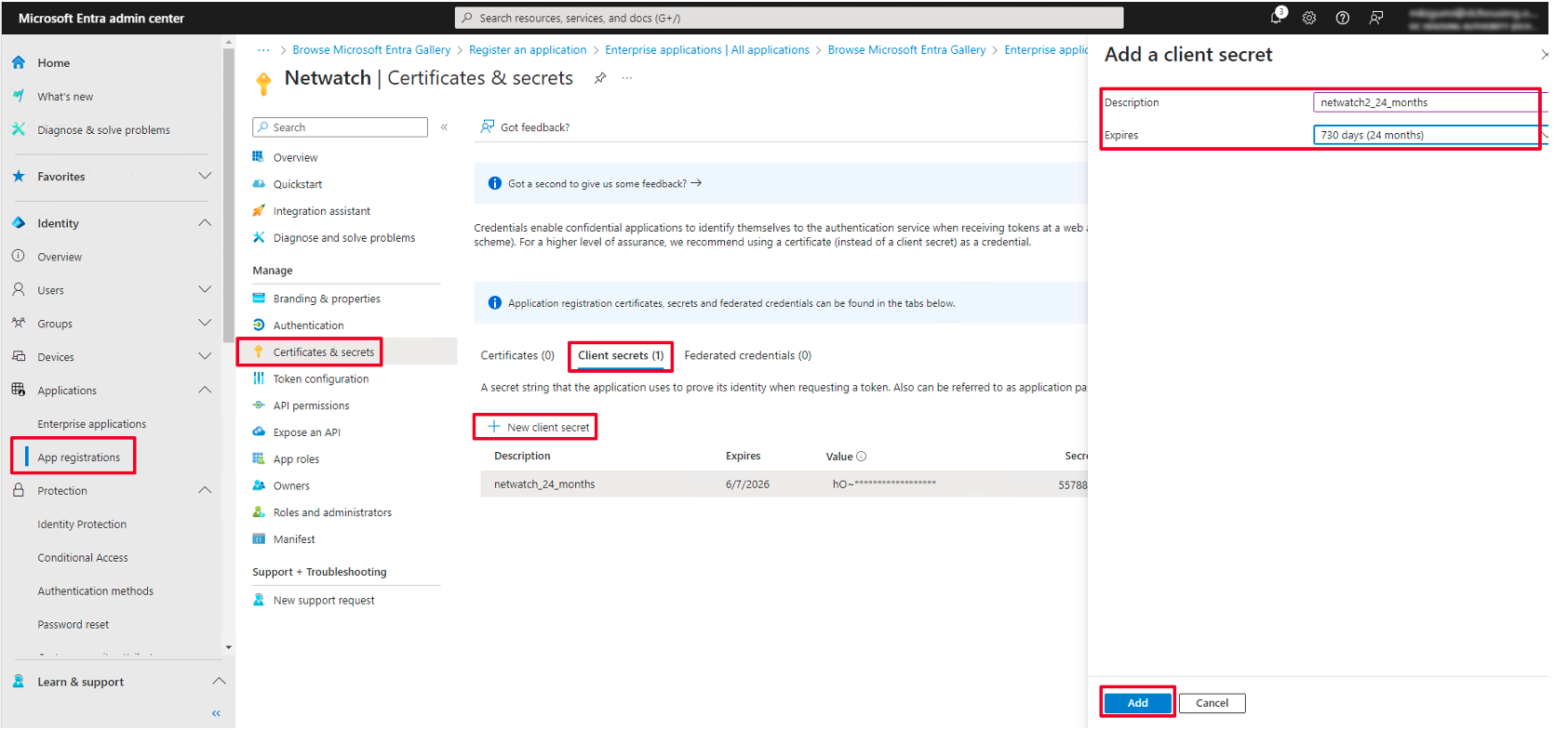
- Navigate to Certificates & Secrets.
- Click New Client Secret.
- Select an expiration date (e.g., 24 months).
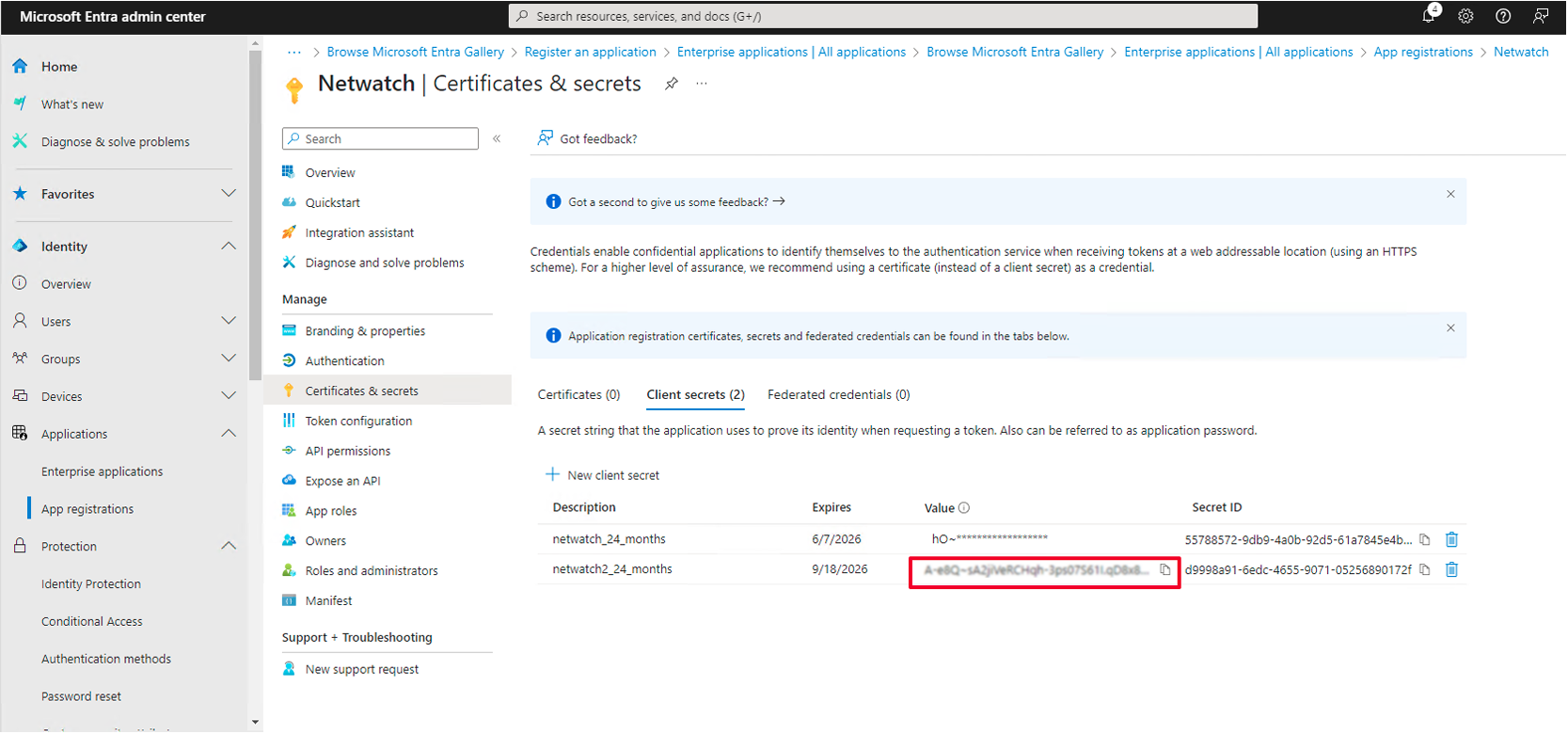
- Copy and securely store the generated Client Secret Value.
- This will be required by the Netwatch administrator for configuration.
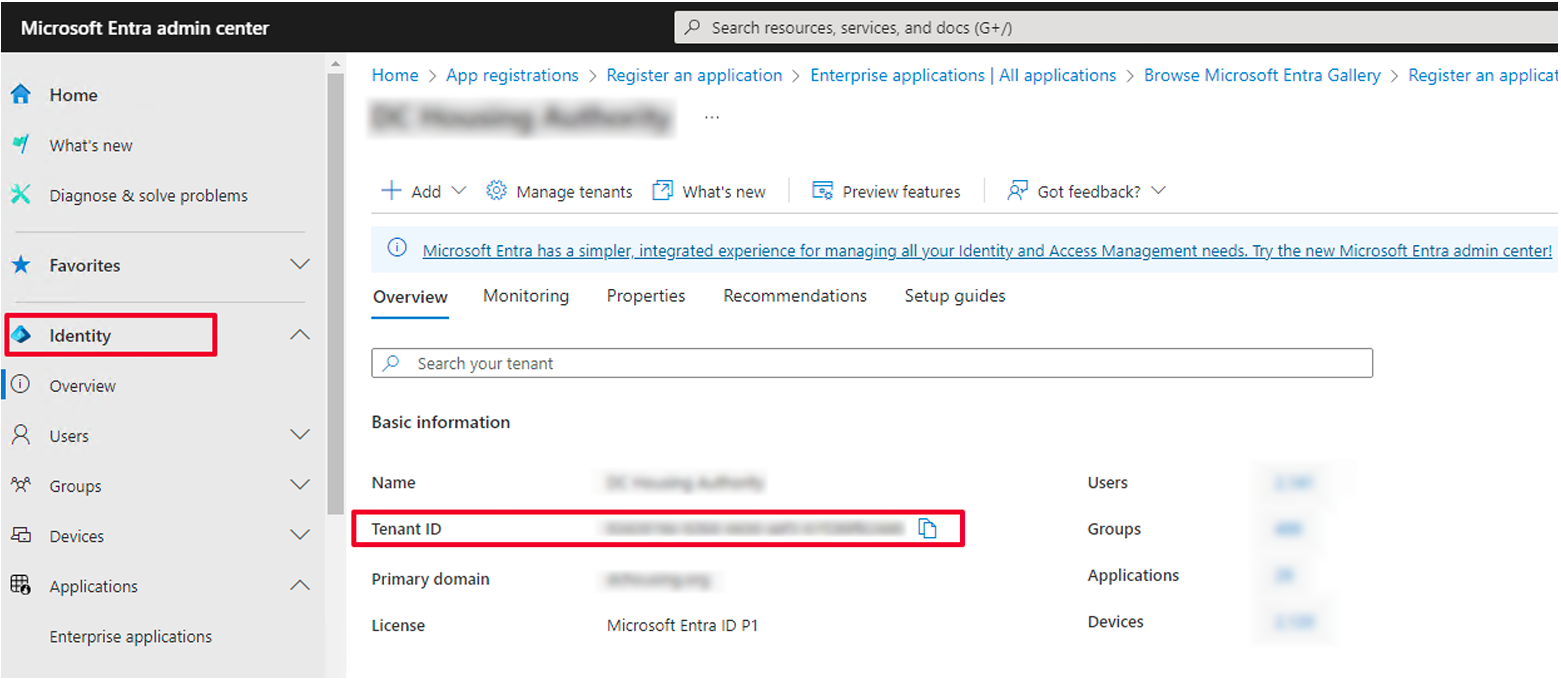
7. Retrieve Required Credentials for Netwatch
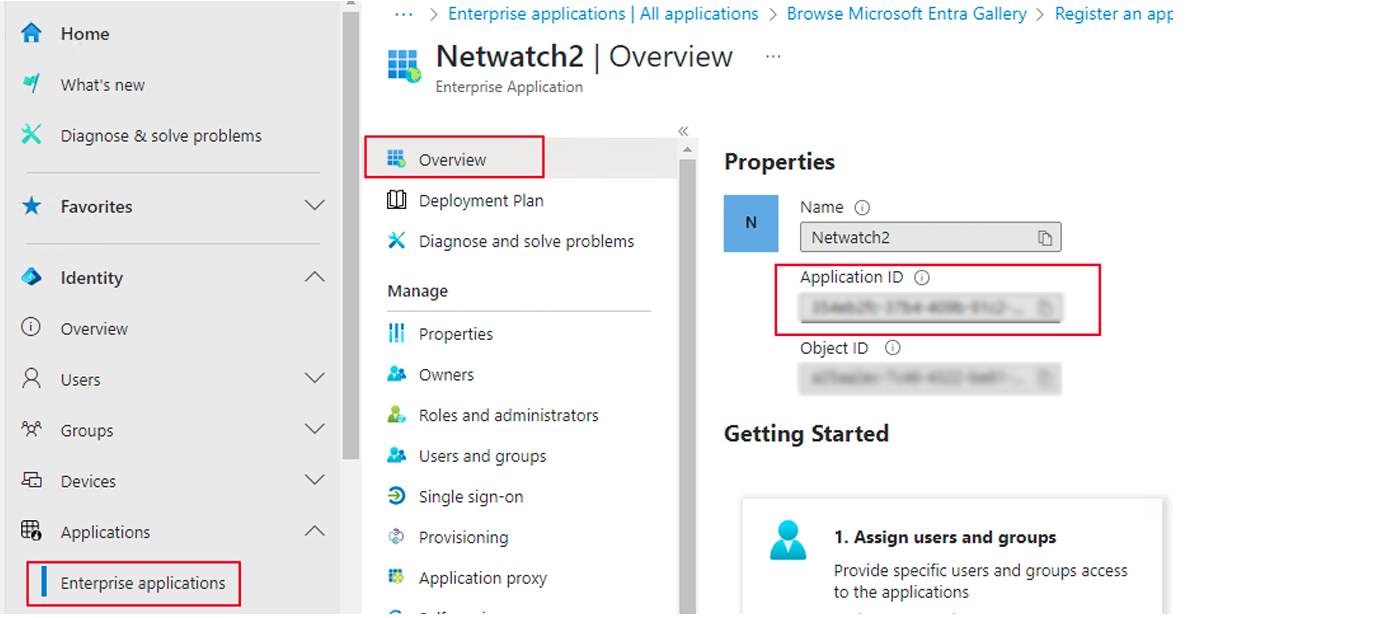
- Client ID/Application ID: Found in Enterprise Application > Netwatch > Overview.
- Client Secret: Obtained from Step 6.
- Tenant ID: Found under Entra Portal > Identity.
This guide ensures seamless integration of Netwatch with M365 for monitoring and analysis.