Citrix
Adding Administrator to Citrix Cloud
Granting administrator access to Citrix Cloud.
Add Administrator to Citrix Cloud
This guide explains how to add an administrator to your Citrix Cloud environment. Once added, the admin will be able to set up and manage API access for integrations etc.
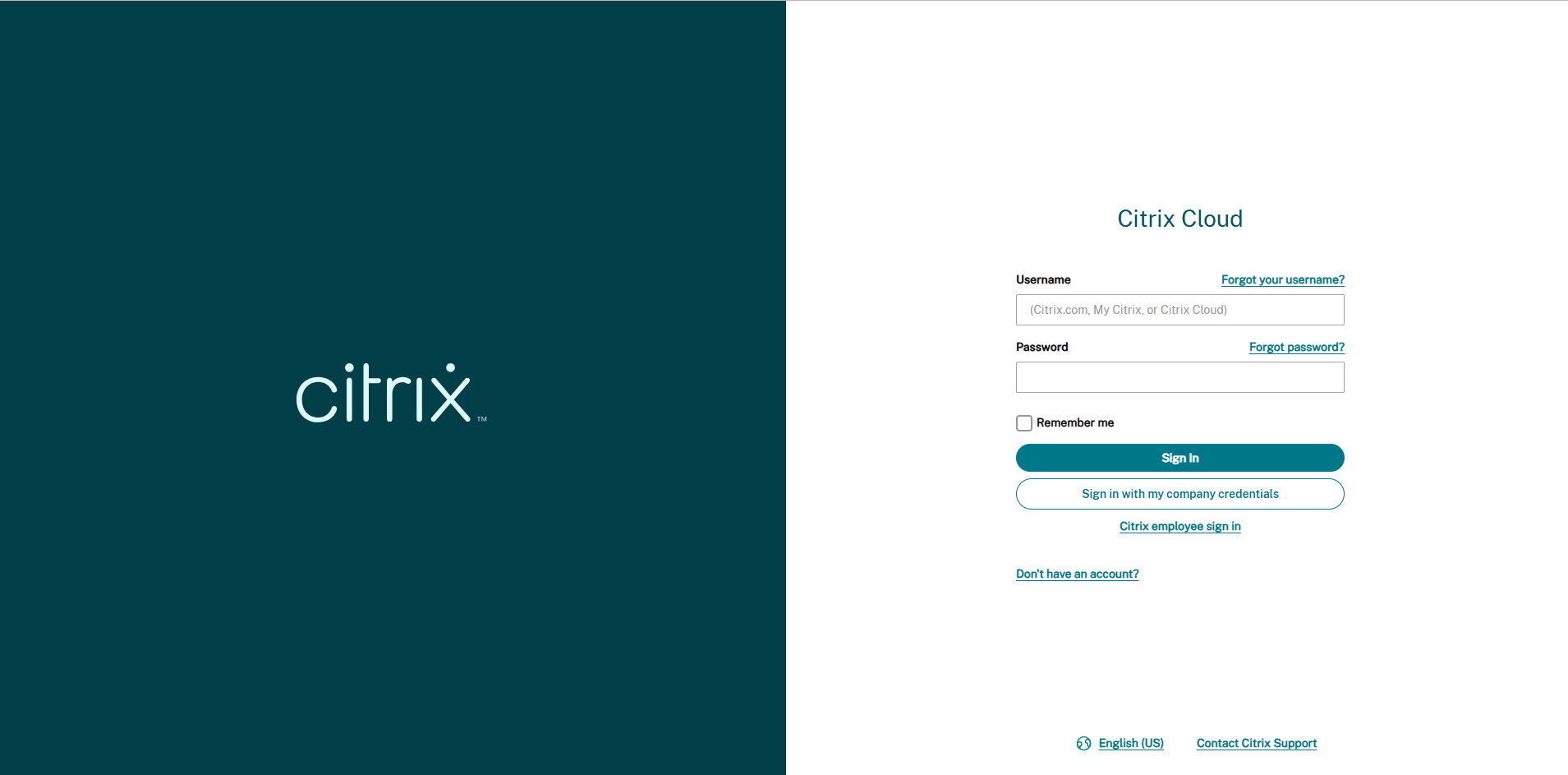
Step 1: Log into Citrix Cloud
- Navigate to https://citrix.cloud.com
- Sign in using your administrator account.
Step 2: Open Identity and Access Management
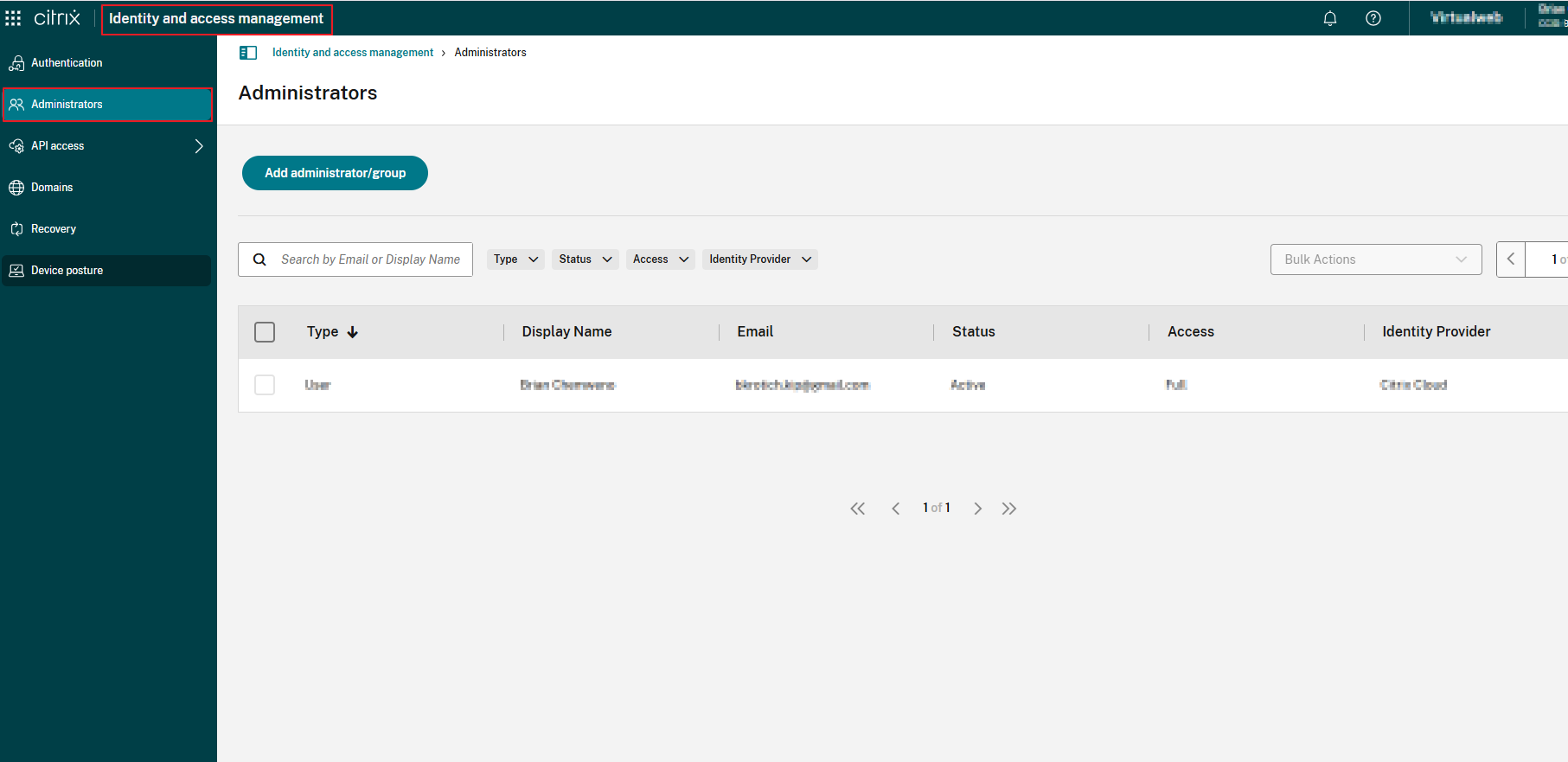
- From the left-hand menu, select Identity and Access Management.
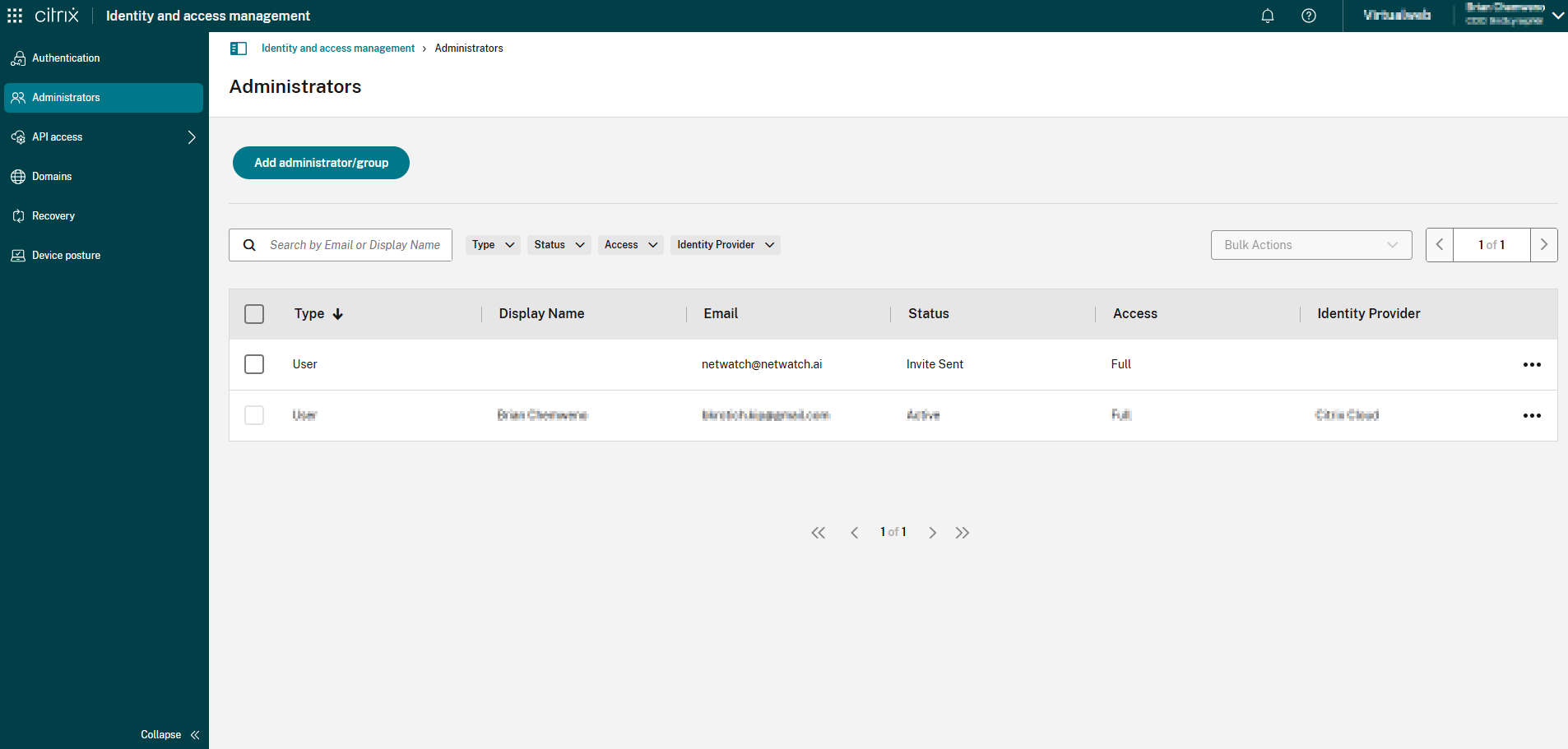
- Click the Administrators tab.
Step 3: Add Administrator or Group
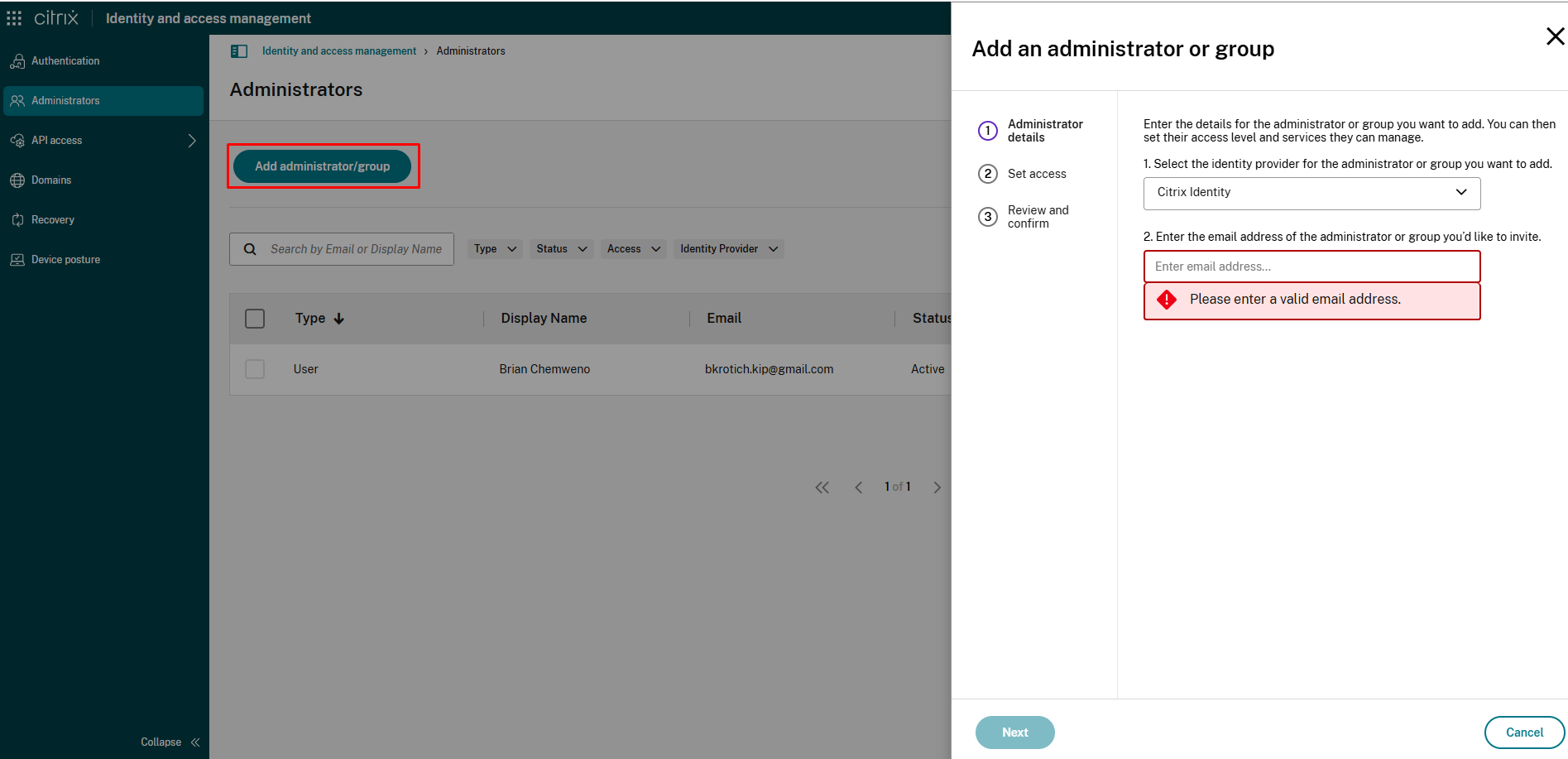
- Click Add administrator/group.
- Select your identity provider:
- Citrix Identity – enter user’s email address.
- Azure AD / SAML / Google – search and select from directory.
- Click Next.
Step 4: Set Permissions
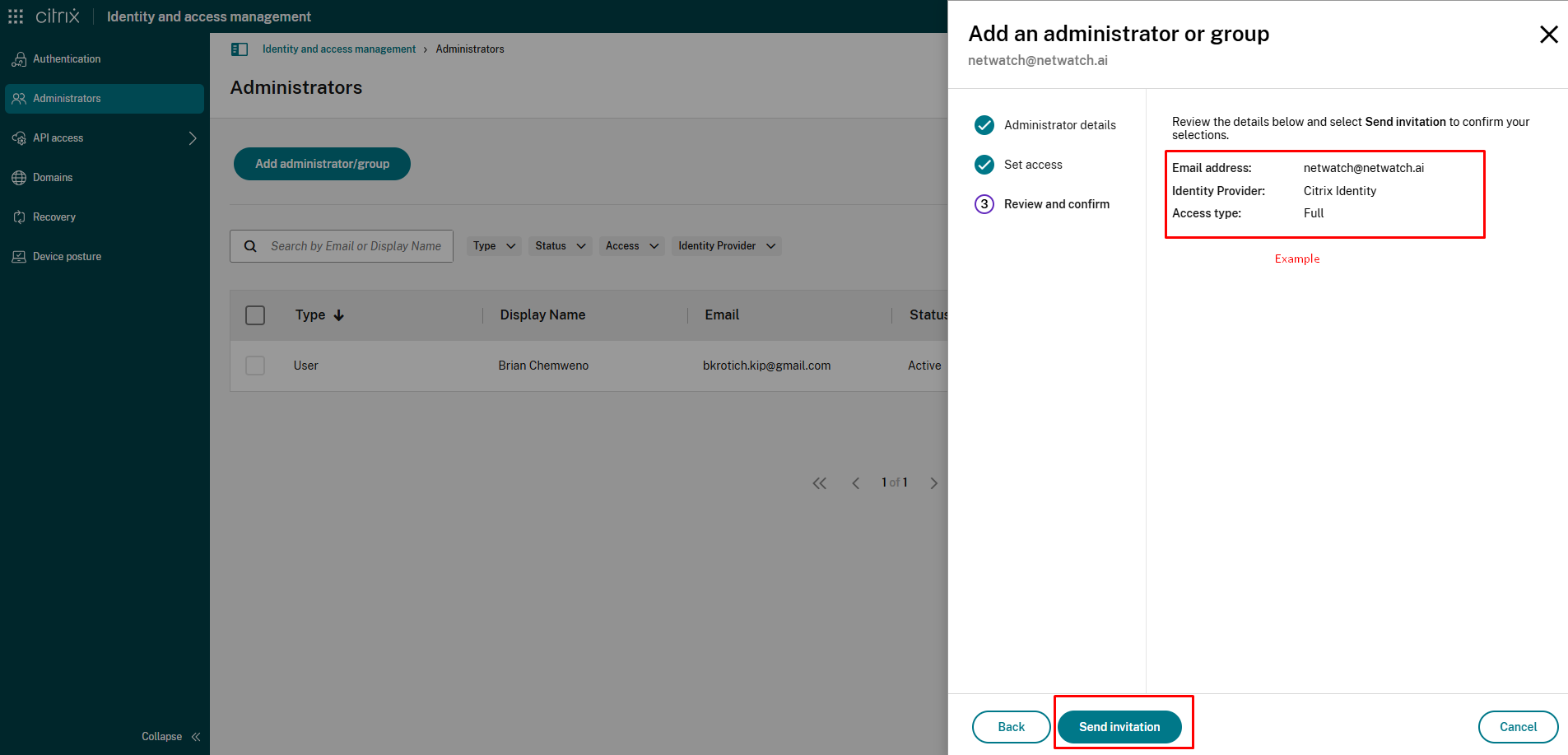
- Choose one of the following access levels:
- Full Access – grants full control, including API setup.
- Custom Access – restricts to specific services.
- Review and confirm the details.
- Click Send Invitation.
Step 5: Administrator Accepts Invitation
- The new administrator receives an email from
[email protected]. - They must click Sign In within 5 days to accept.
- During login, they will be prompted to set up multifactor authentication.
If the invite link expires, delete the administrator and repeat the process.
After Setup: API Access
Once the administrator is added and logged in:
- They can configure API Clients under API Access.
- API Tokens are protected by MFA.
- Only admins with sufficient privileges can generate or manage API credentials.
Notes
- Each administrator account can manage up to 100 Citrix Cloud customers.
- For over 100 accounts, use a separate admin email.