User Password Reset
Reset your Netwatch account password on first login or from the User Management panel.
Login Steps
Step 1: Go to the Login Page
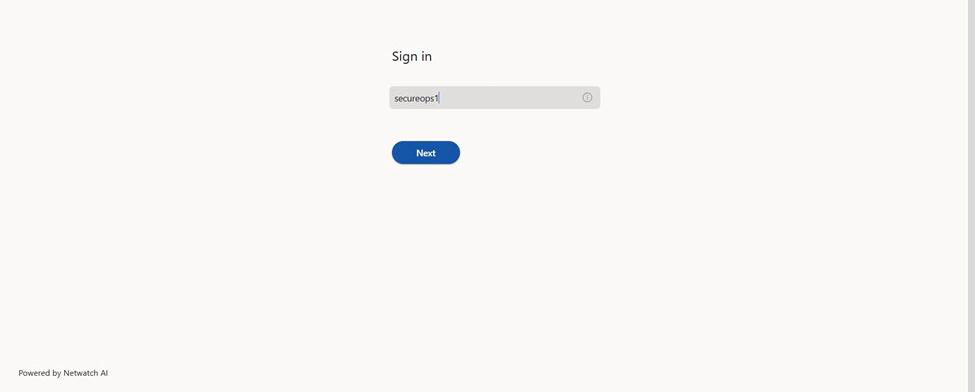
Open your browser and navigate to https://auth.netwatch.ai. You will see the Sign In screen below.
Step 2: Enter Your Username and Password
Type in the username provided and click Next. You will then be prompted to enter your temporary password. Enter it and click Sign In.
Step 3: Set Your New Permanent Password
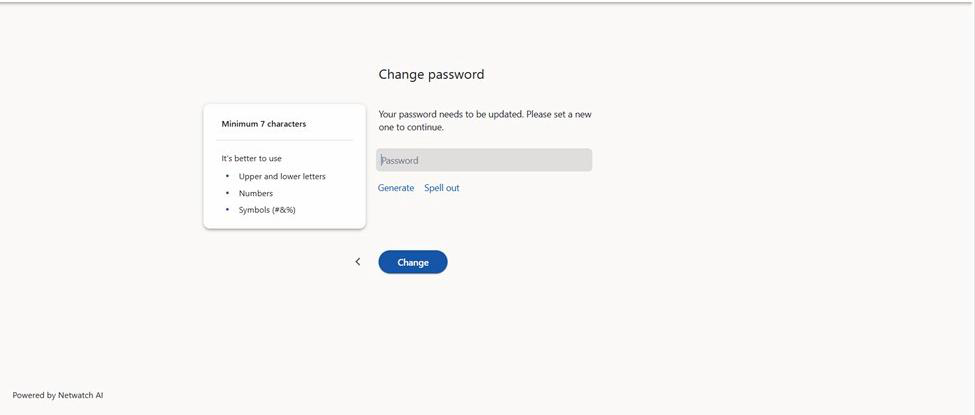
Because you are using a temporary password, the system will automatically redirect you to the Change Password screen shown below. You must set a new password before you can continue.
Your new password must include:
- Minimum 7 characters
- Upper and lower case letters
- Numbers
- Symbols (#&%)
Enter your new password and click Change to save it. You will use this password for all future logins.
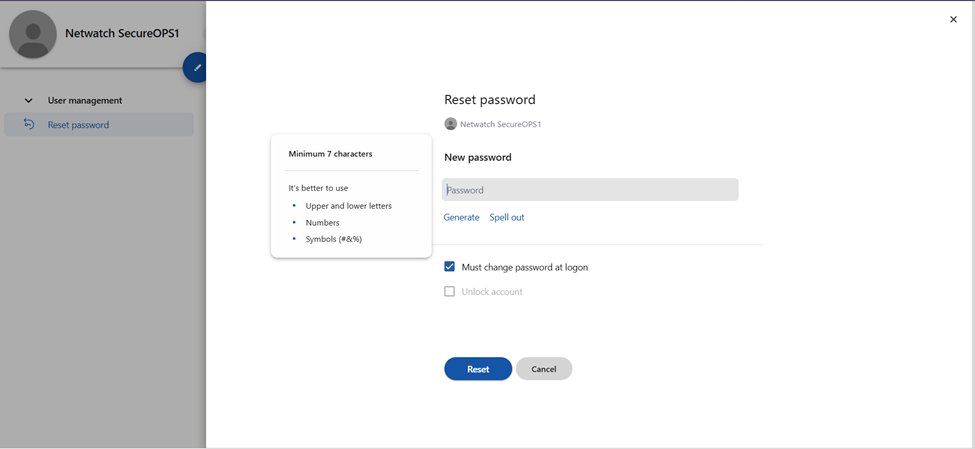
User Password Reset on User Management Panel
If needed, you can reset the account password directly from the User Management panel inside the portal. Navigate to User Management → Reset Password, enter a new password, and click Reset.
The Must change password at logon option is enabled by default, so the user will be prompted to set their own password on next login.