
Disabling SentinelOne
Allow the Netwatch agent to be installed on systems protected by SentinelOne.
This guide explains how to allow the Netwatch agent to be installed on Windows systems where SentinelOne Endpoint Protection is active.
SentinelOne can block installers by default if they are not explicitly trusted. To proceed safely, you should create an exclusion (recommended) or temporarily disable protection during installation.
There are two supported approaches:
- Recommended: Add a SentinelOne exclusion (allow rule)
- Temporary: Disable SentinelOne protection during installation
Option 1: Allow Netwatch Agent Using SentinelOne Exclusions (Recommended)
This method keeps SentinelOne active while allowing the Netwatch installer to run.
Steps
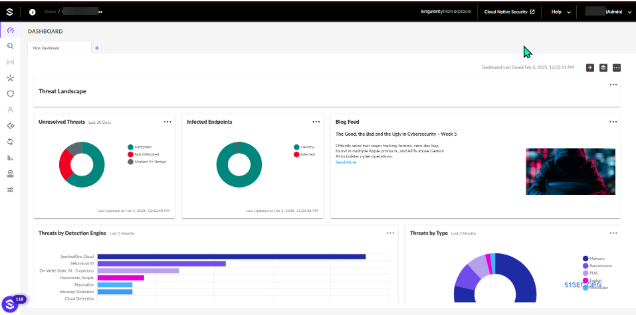
- Log in to the SentinelOne Management Console using an administrator account.
-
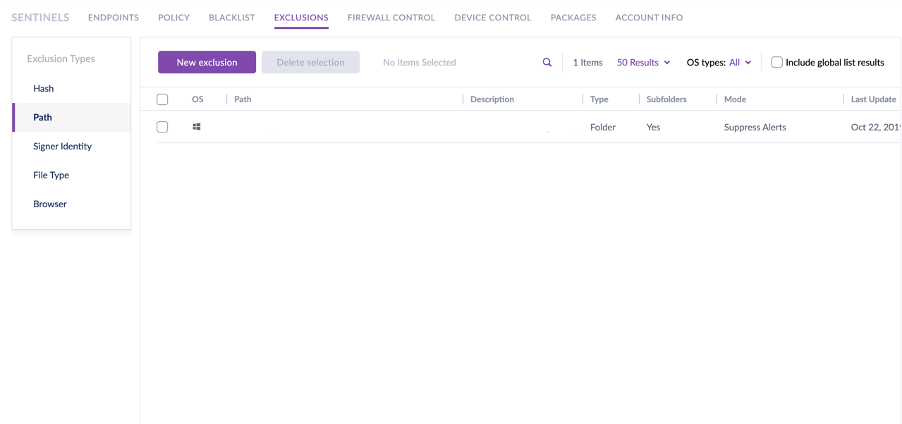
From the left-hand menu, navigate to:
Sentinels → Exclusions
-
Click New Exclusion (or Create Exclusion).
-
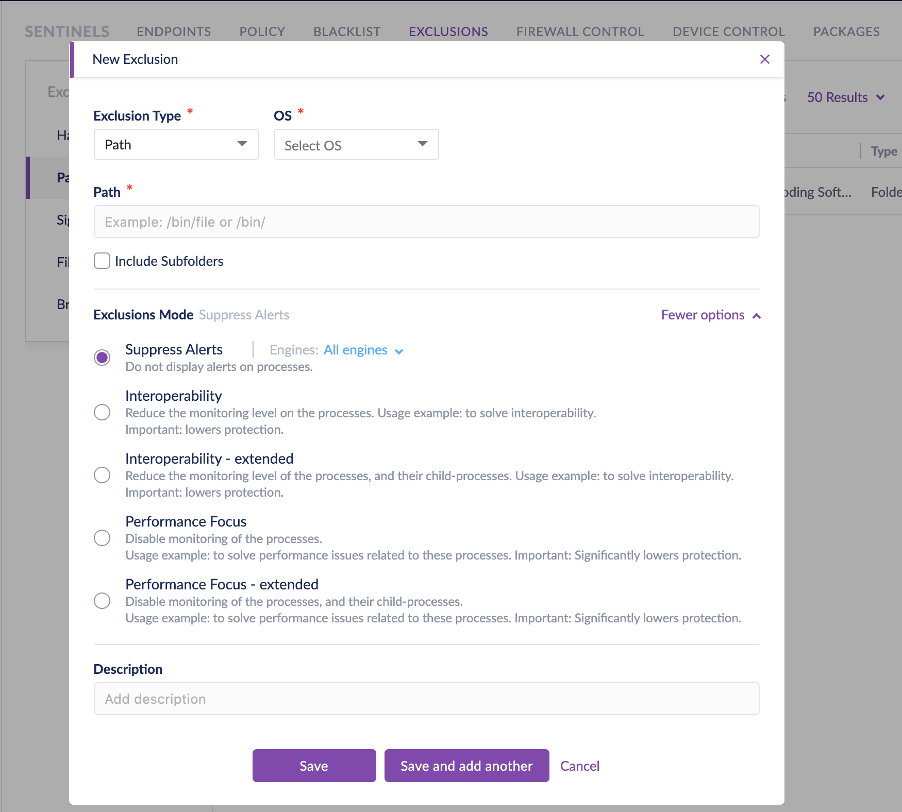
Configure the exclusion:
- Exclusion Type: File Path or Process
- Path: Location of the Netwatch installer (e.g.
C:\Temp\netwatch_installer_xxxx_host.exe) - Scope: Select the relevant site, group, or endpoints
- Description: Allow Netwatch Agent Installation
-
Save the exclusion and allow time for the policy to sync to endpoints.
-
Run the Netwatch installer as Administrator.
Once completed, SentinelOne will continue protecting the system while allowing the Netwatch agent to operate normally.
Option 2: Temporarily Disable SentinelOne Protection (If Exclusions Are Not Possible)
This method should only be used when exclusions cannot be created in advance and must be performed by an administrator.
Steps
-
Obtain the SentinelOne Passphrase from the SentinelOne management console.
-
On the target Windows system, open Command Prompt as Administrator.
-
Temporarily disable SentinelOne protection using the following commands:
sentinelctl unprotect -k <PASS_PHRASE>
sentinelctl unload -m -a-
Run the Netwatch installer as Administrator.
-
After installation is complete, re-enable SentinelOne protection:
sentinelctl load -m -a
sentinelctl protect
After installation...
- Confirm the Netwatch agent service is running on the host
- Verify the system appears in the Netwatch console under the correct host group
- Confirm SentinelOne protection status is Enabled