
Microsoft Azure
Generate and configure Azure API credentials for Netwatch monitoring.
Overview
This guide explains two supported methods for generating Azure API credentials for Netwatch:
- Option A: Azure CLI (Recommended)
- Option B: Azure Portal (Manual)
Both methods produce the same required credentials and grant Netwatch read-only access to all Azure resources in the subscription.
Required Roles
To complete the steps below, you must have one of the following roles on the Azure subscription:
- Owner
- User Access Administrator
Required Credentials
After completing either option, you will obtain:
- Subscription ID
- Tenant ID
- Client ID
- Client Secret
These credentials allow Netwatch to monitor:
- Virtual Machines
- Databases
- Storage Accounts
- Networking resources
- Cost and usage data
Option A: Azure CLI Method (Recommended)
This is the fastest and least error-prone method. Microsoft and Zabbix both recommend using Azure Cloud Shell.
Steps to Generate API Credentials
1. Access Azure Cloud Shell
- Navigate to https://portal.azure.com
- Log in with your Azure account
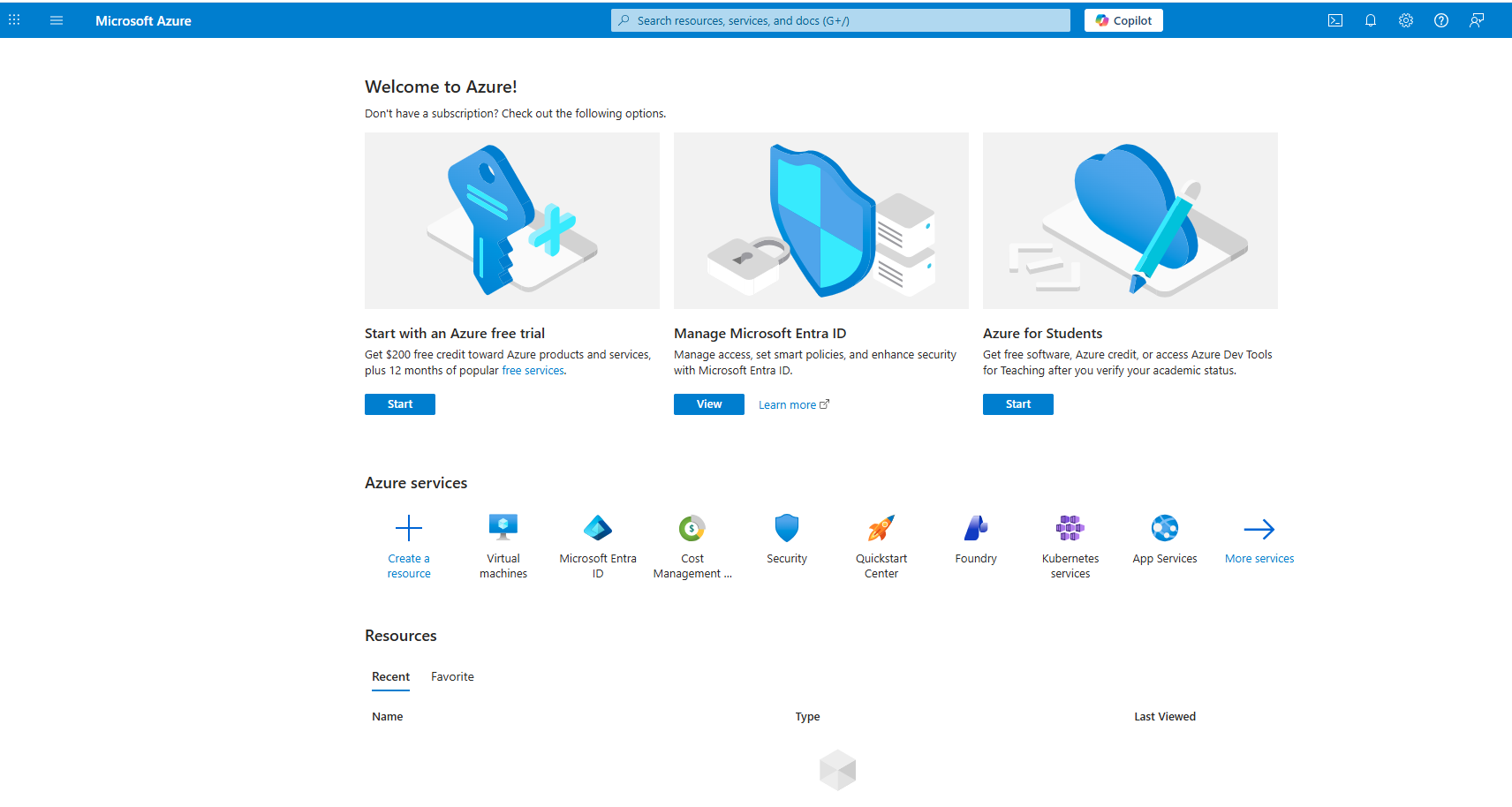
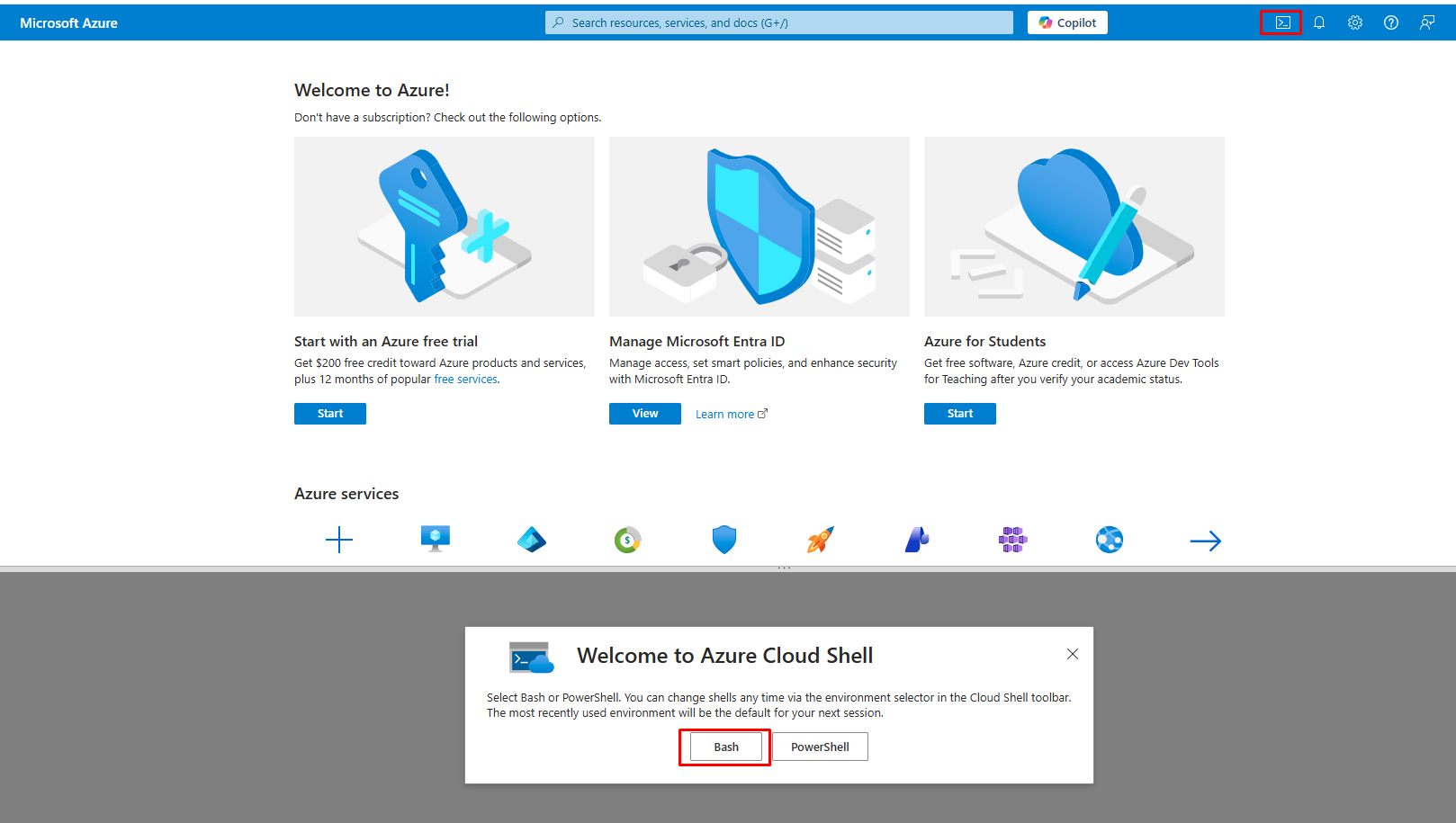
- Click the Cloud Shell (>_) icon in the top-right corner
- Select Bash when prompted
2. Retrieve Subscription ID
Run the command below in Cloud Shell:
az account show --query id --output tsvCopy and save the output value. This is your Subscription ID.
3. Create Service Principal with Reader Access
Replace <SUBSCRIPTION_ID> with the value obtained in the previous step.
az ad sp create-for-rbac \
  --name Netwatch-Monitor \
  --role Reader \
  --scope /subscriptions/<SUBSCRIPTION_ID>
This command automatically:
- Registers an application
- Creates a client secret
- Assigns Reader role at subscription level
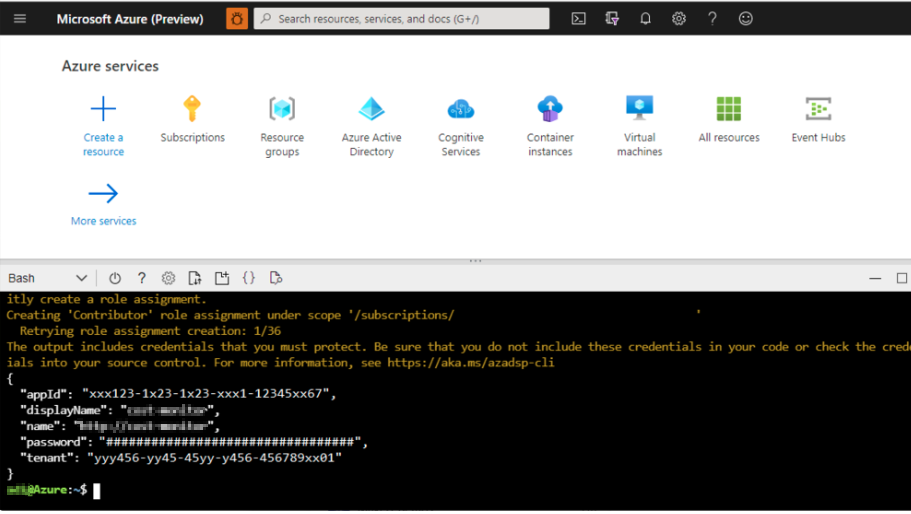
4. Capture Generated Credentials
The command returns JSON similar to the example below:
{
  "appId": "aaaaaaaa-bbbb-cccc-dddd-eeeeeeeeeeee",
  "displayName": "Netwatch-Monitor",
  "password": "#################################",
  "tenant": "yyy456-yy45-45yy-y456-456789xxo1"
}
Map the values as follows:
- Client ID:
appId - Client Secret:
password - Tenant ID:
tenant - Subscription ID: From Step 2
Option B: Azure Portal Method (Manual)
Use this method if CLI access is restricted or disabled in your environment.
Steps to Generate API Credentials
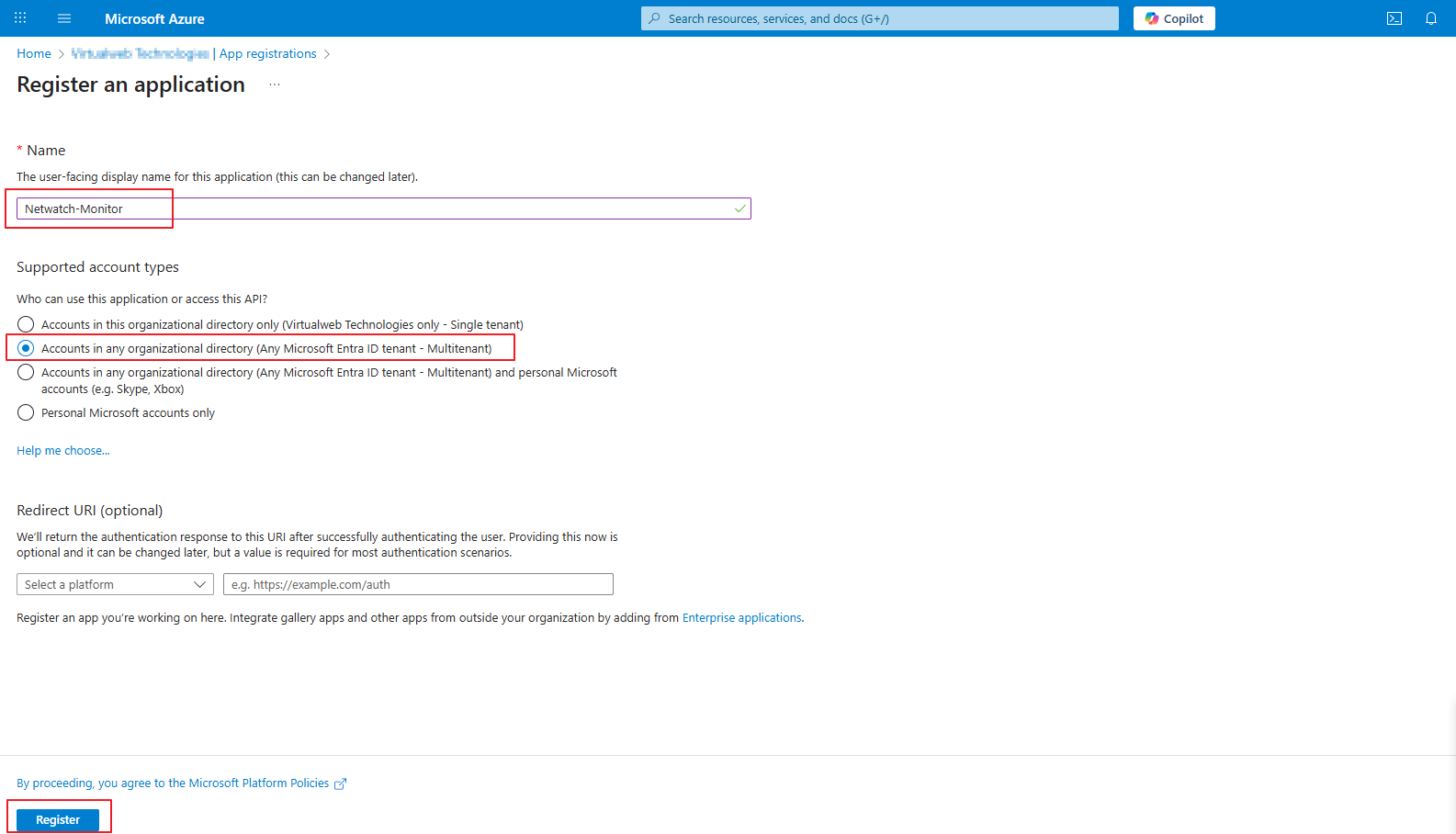
1. Register an Application
- Log in to Azure Portal
- Search for App registrations
- Click New registration
- Enter application name: Netwatch-Monitor
- Select Accounts in this organizational directory only
- Click Register
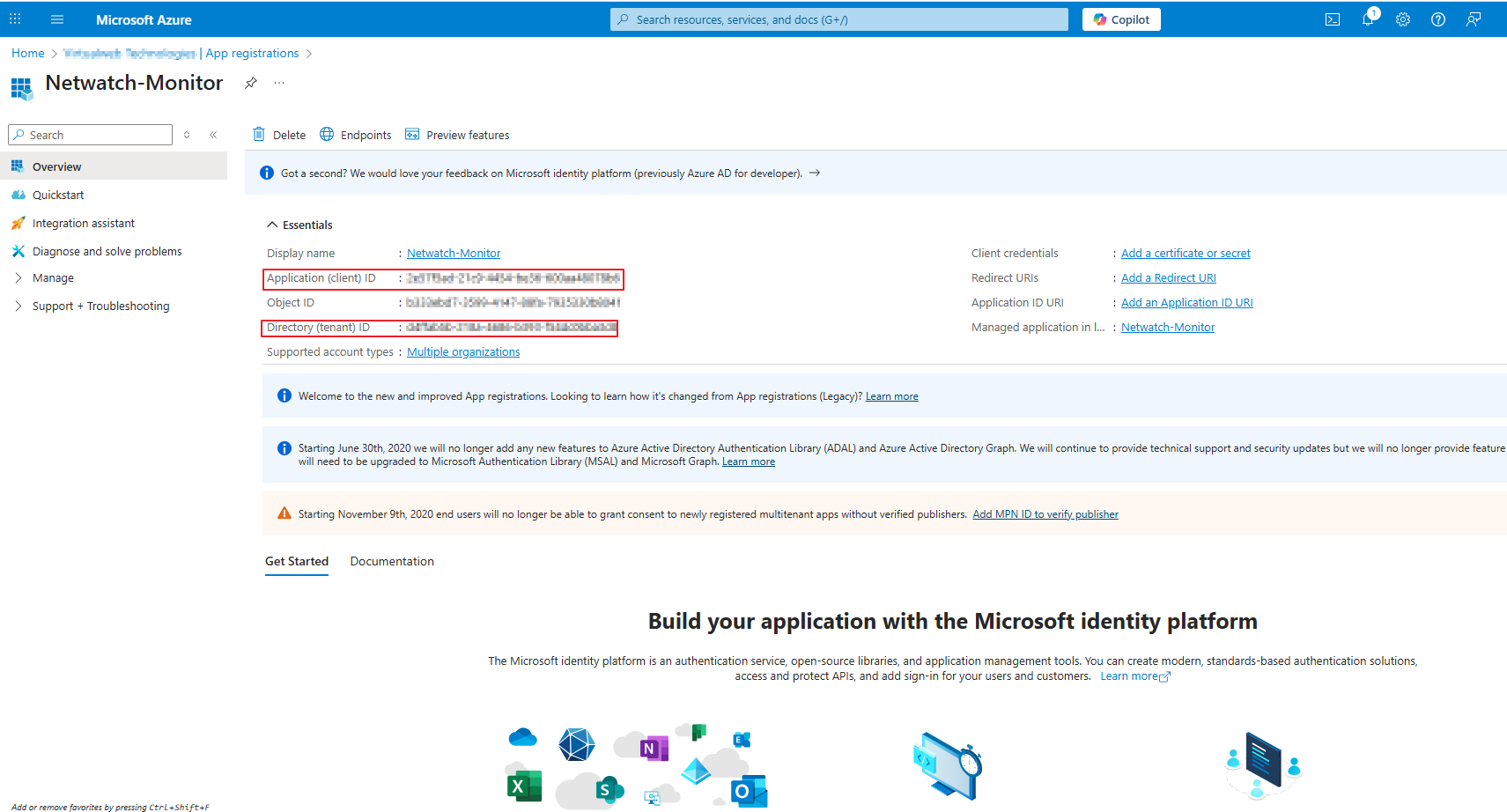
2. Retrieve Client ID and Tenant ID
From the application Overview page, copy:
- Application (Client) ID
- Directory (Tenant) ID
3. Generate Client Secret
- Navigate to Certificates & secrets
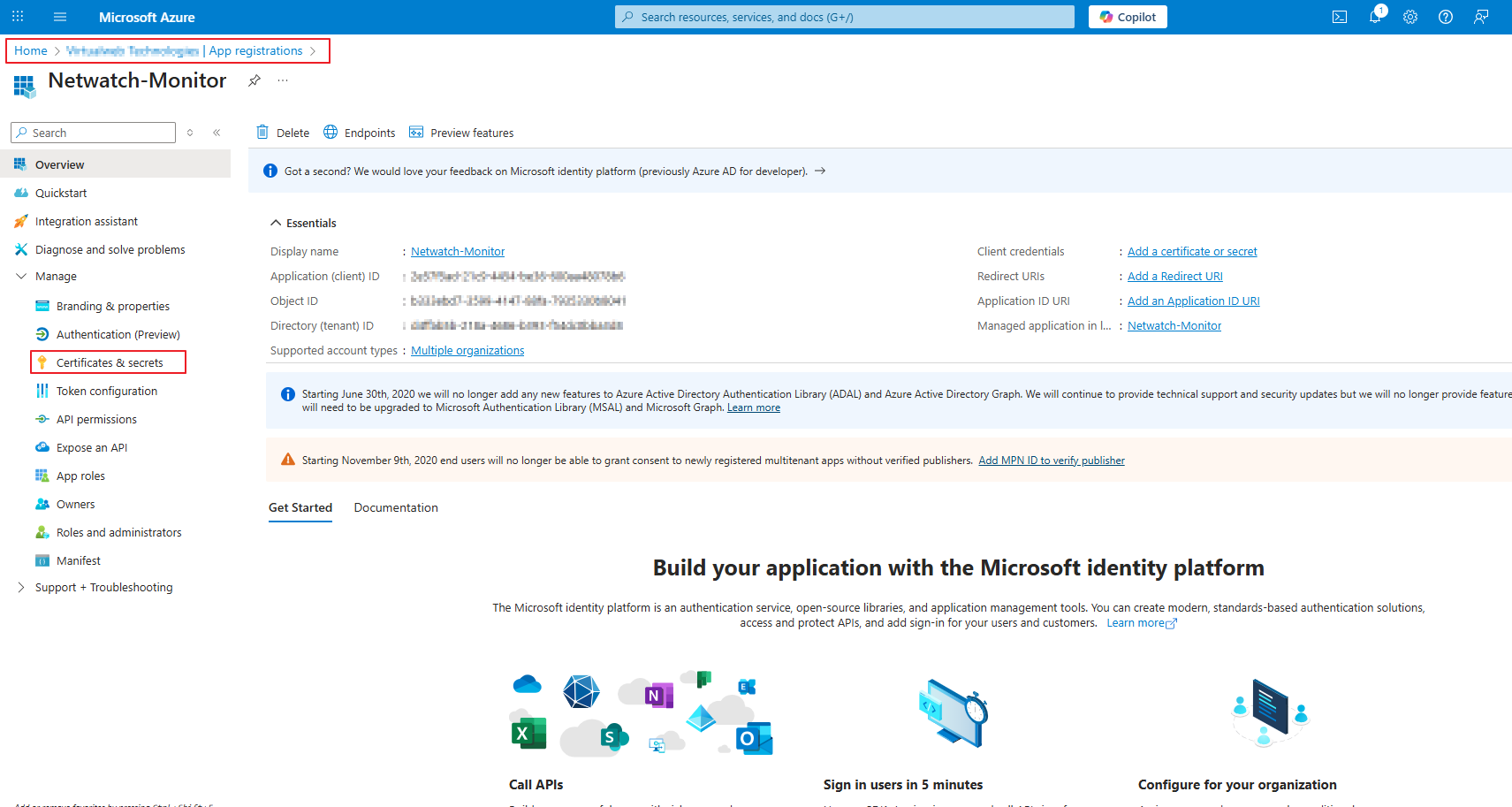
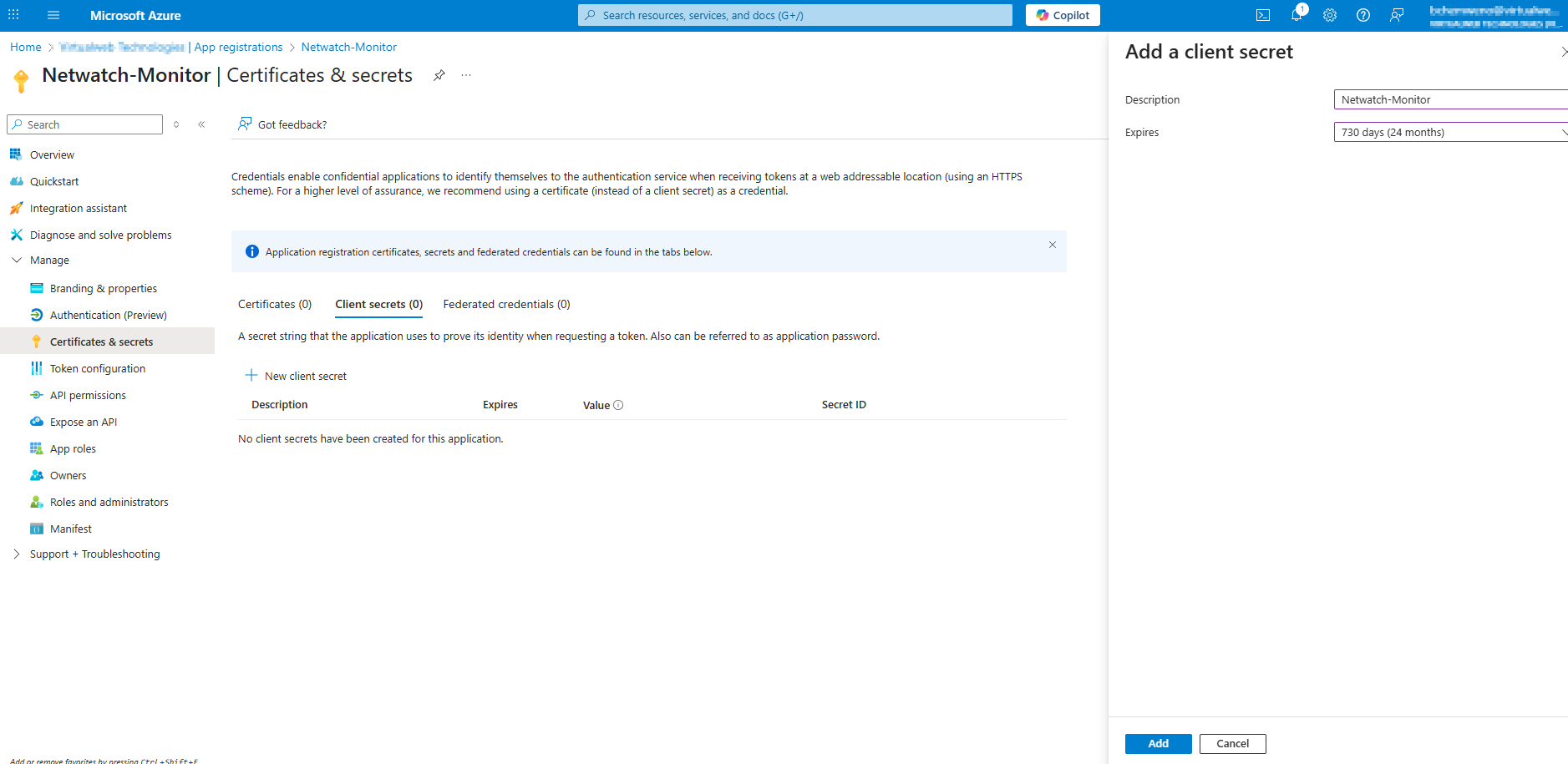
- Click New client secret
- Enter a description
- Select an expiration period
- Click Add
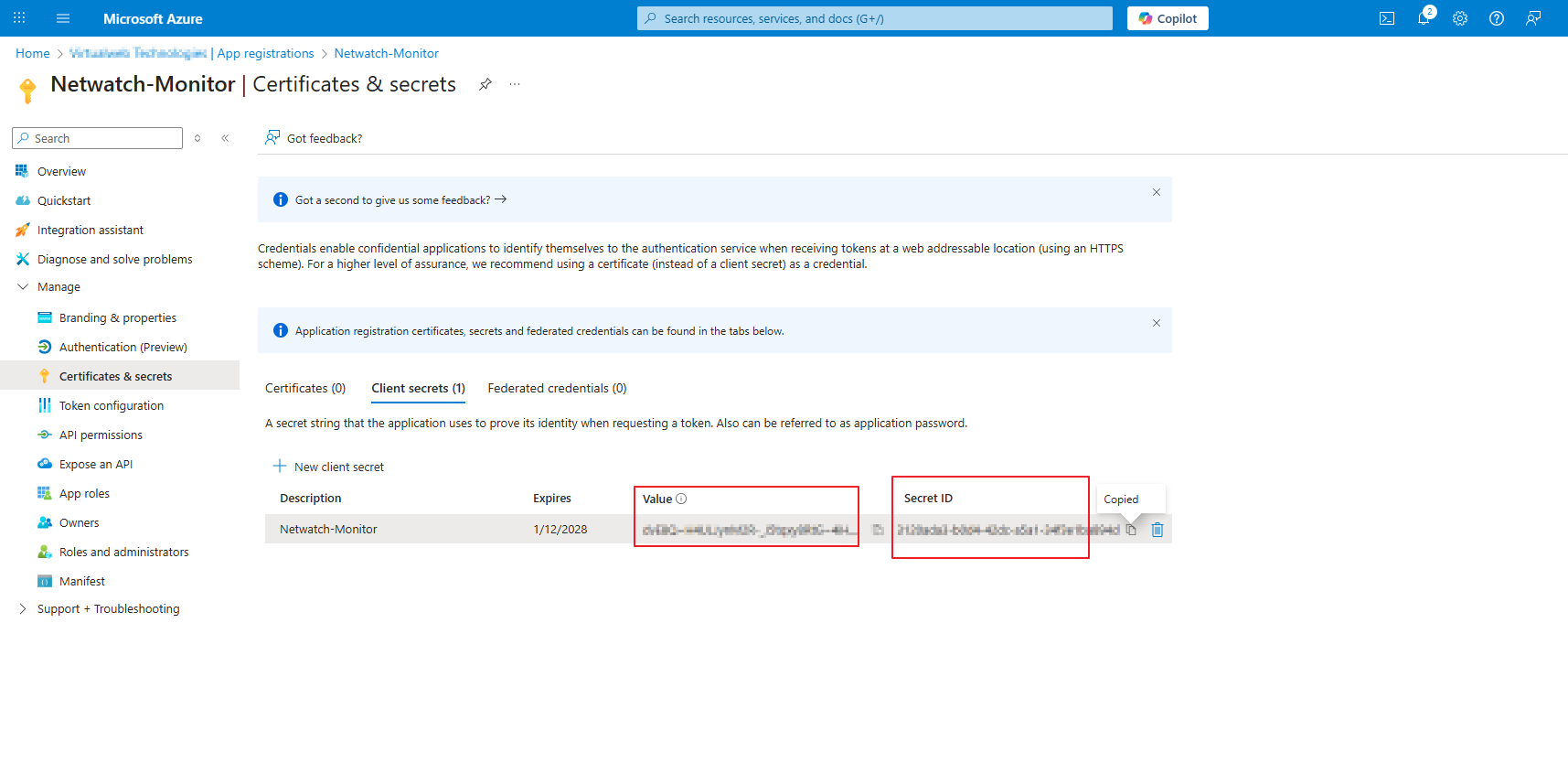
Immediately copy the Value field. This is your Client Secret.
Note: This value is shown only once.
4. Assign Reader Role to Subscription
- Search for Subscriptions in Azure Portal
- Select the target subscription
- Go to Access control (IAM)
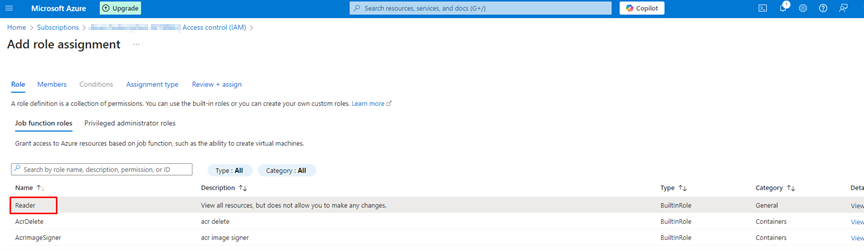
- Click Add > Add role assignment
- Select Reader role
- Assign access to User, group, or service principal
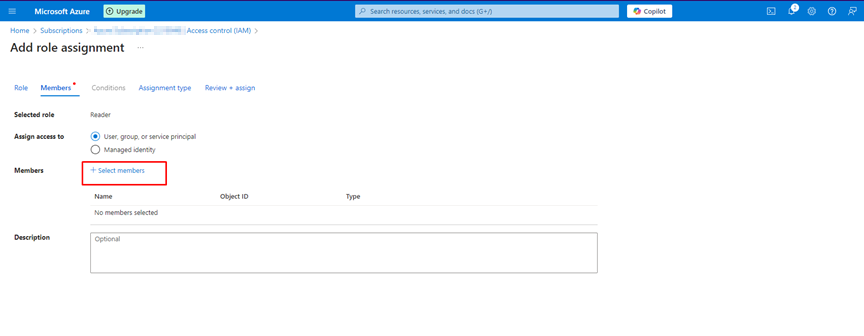
- Select Netwatch-Monitor application
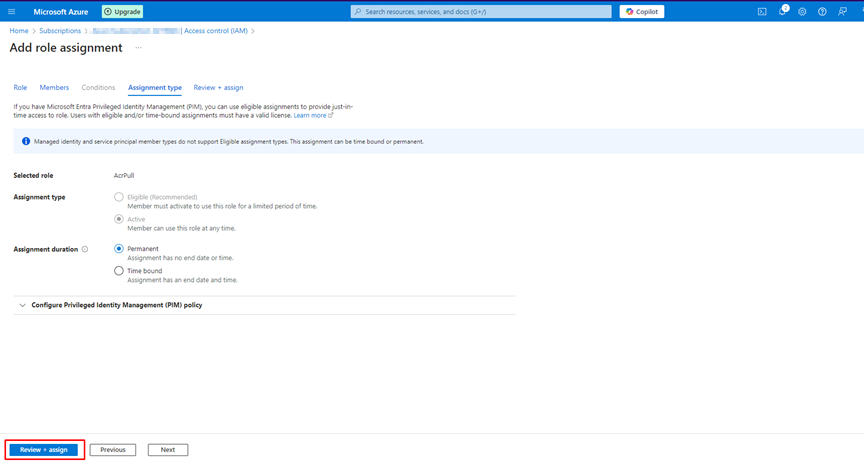
- Click Review + assign
5. Retrieve Subscription ID
From the Subscription Overview page, copy the Subscription ID.
Final Credential Checklist
Ensure you have collected all four values below:
- Subscription ID
- Tenant ID
- Client ID
- Client Secret
These values are required for Netwatch Azure monitoring configuration.
Recommendation
Whenever possible, use Option A (Azure CLI). It is faster, consistent, and minimizes configuration errors. Option B is provided for environments with restricted CLI access.