
Microsoft Teams
Send Netwatch alerts to Microsoft Teams using an incoming webhook.
Overview
This guide describes how to connect Netwatch OPS to a Microsoft Teams channel using a Power Automate flow, so alert notifications are delivered as Adaptive Cards to the channel you choose.
The flow exposes an HTTP endpoint that Netwatch calls when an alert fires. The endpoint URL is provided to Netwatch.AI for configuration.
Prerequisites
Create a dedicated Microsoft 365 service account (for example, [email protected]) with a Microsoft Teams license. This account owns the NetWatch workflow that receives alerts and posts notifications to Teams.
Important: Do not use a personal user account. Sign in to Power Automate as this service account when creating the flow described below.
M365 Tasks
1. Create the Power Automate Flow
Head over to Power Automate at https://make.powerautomate.com/.
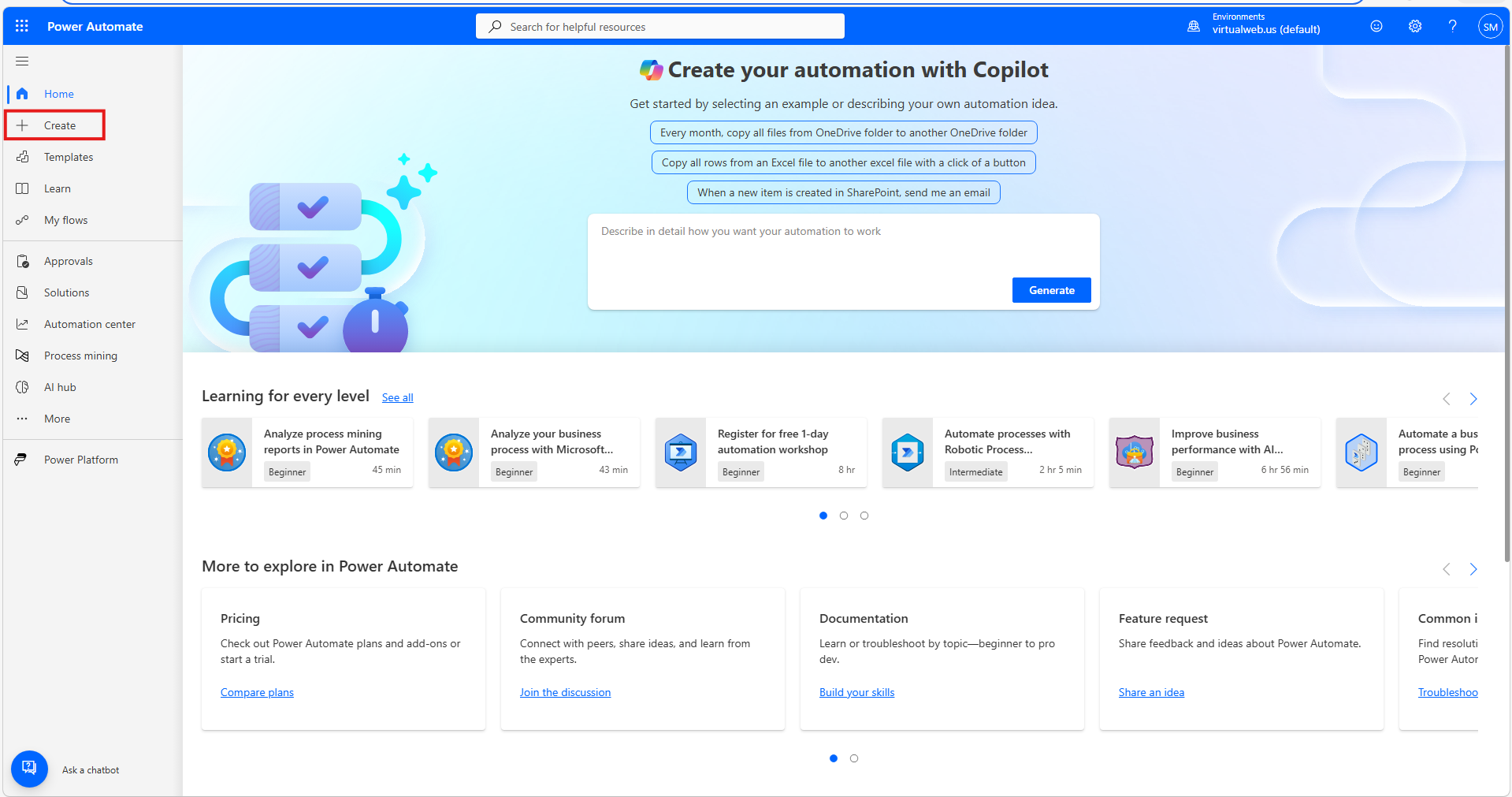
Click Create, then select Instant cloud flow.
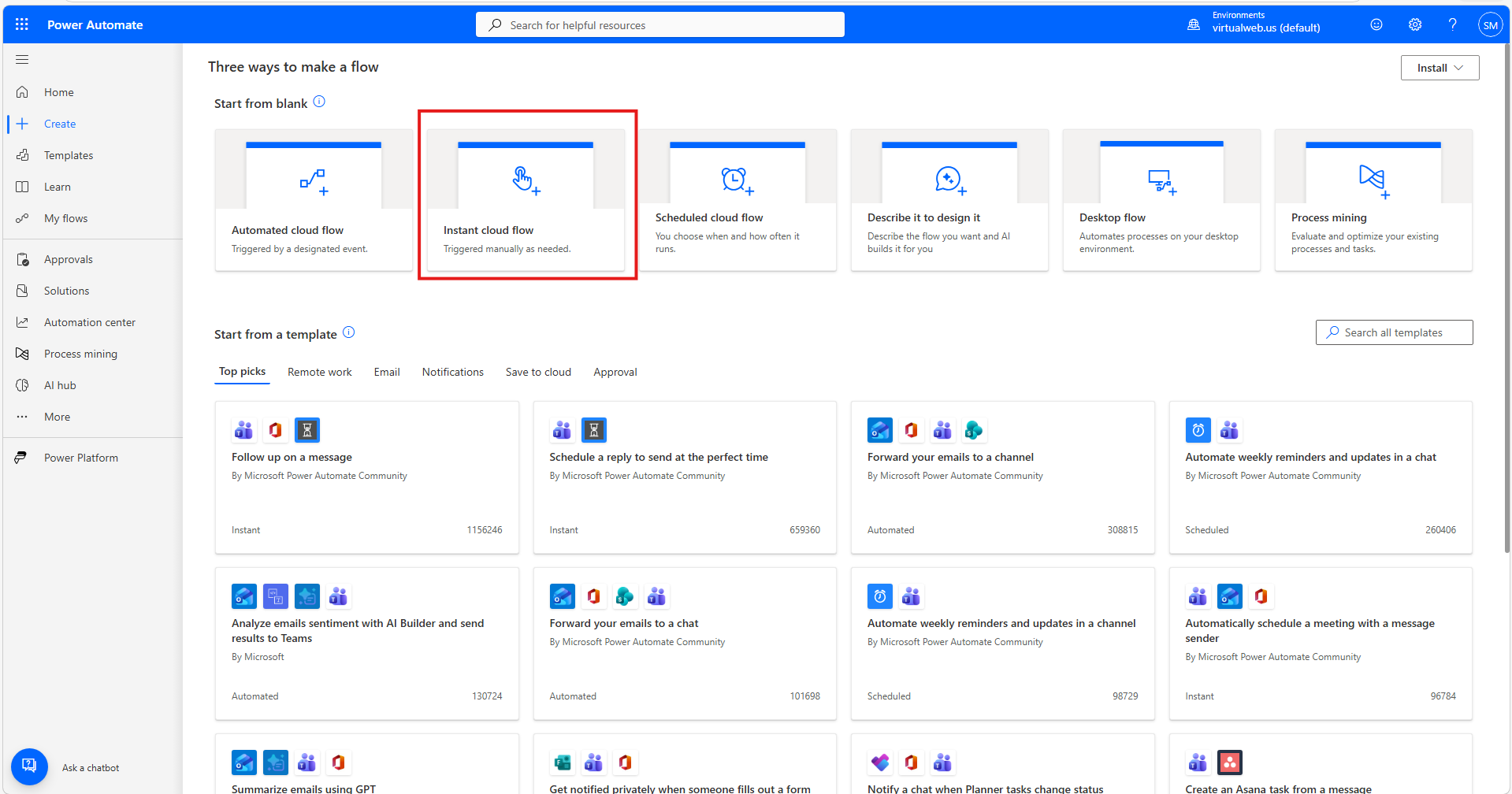
Scroll down to When an HTTP request is received, select it, and create the flow.
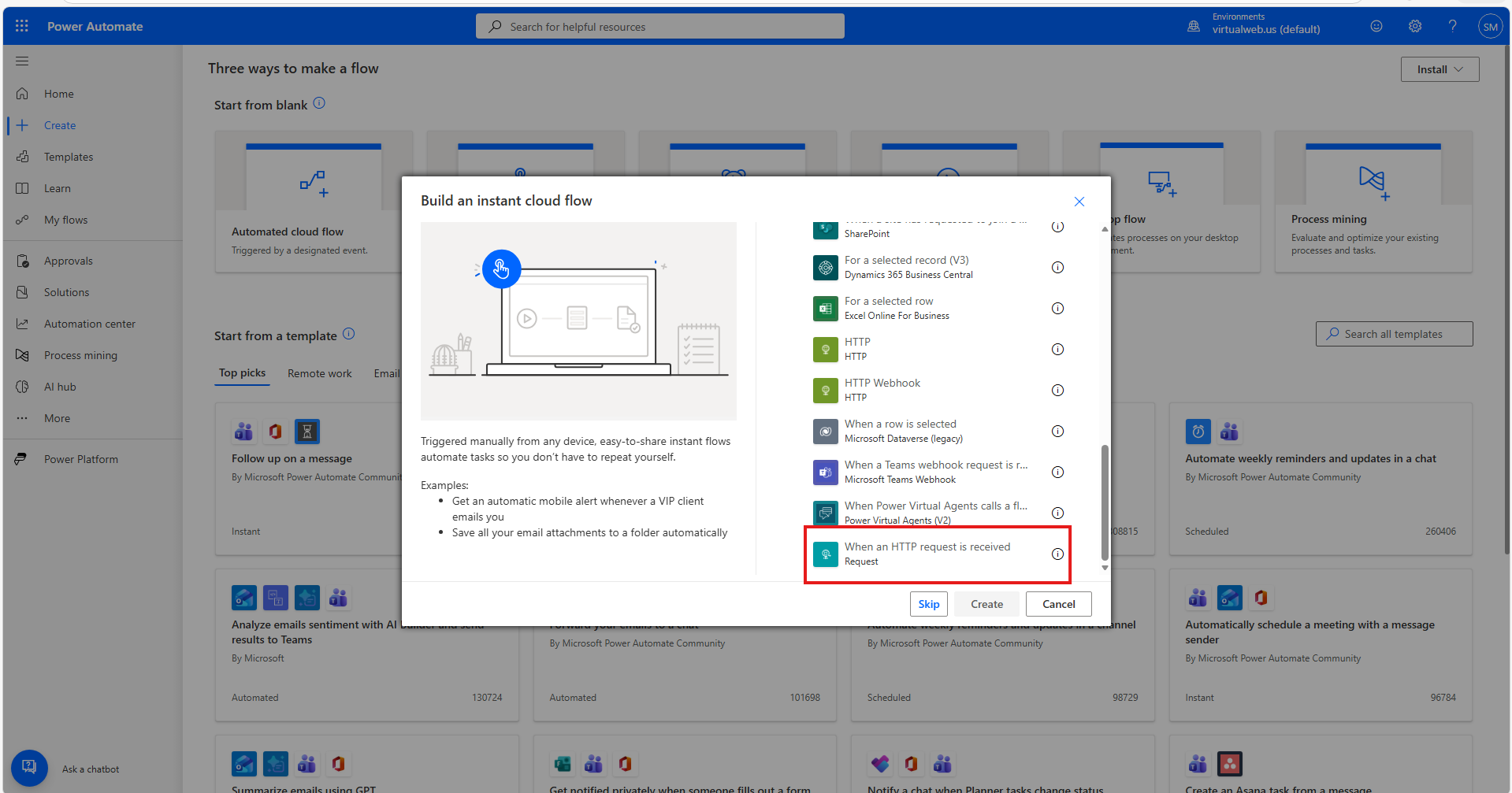
2. Configure the Trigger
Configure the trigger with the following Request Body JSON Schema:
{
    "type": "object",
    "properties": {
        "subject": {
            "type": "string"
        },
        "message": {
            "type": "string"
        },
        "severity": {
            "type": "string"
        },
        "host": {
            "type": "string"
        },
        "event_time": {
            "type": "string"
        }
    }
}
3. Add the Teams Action
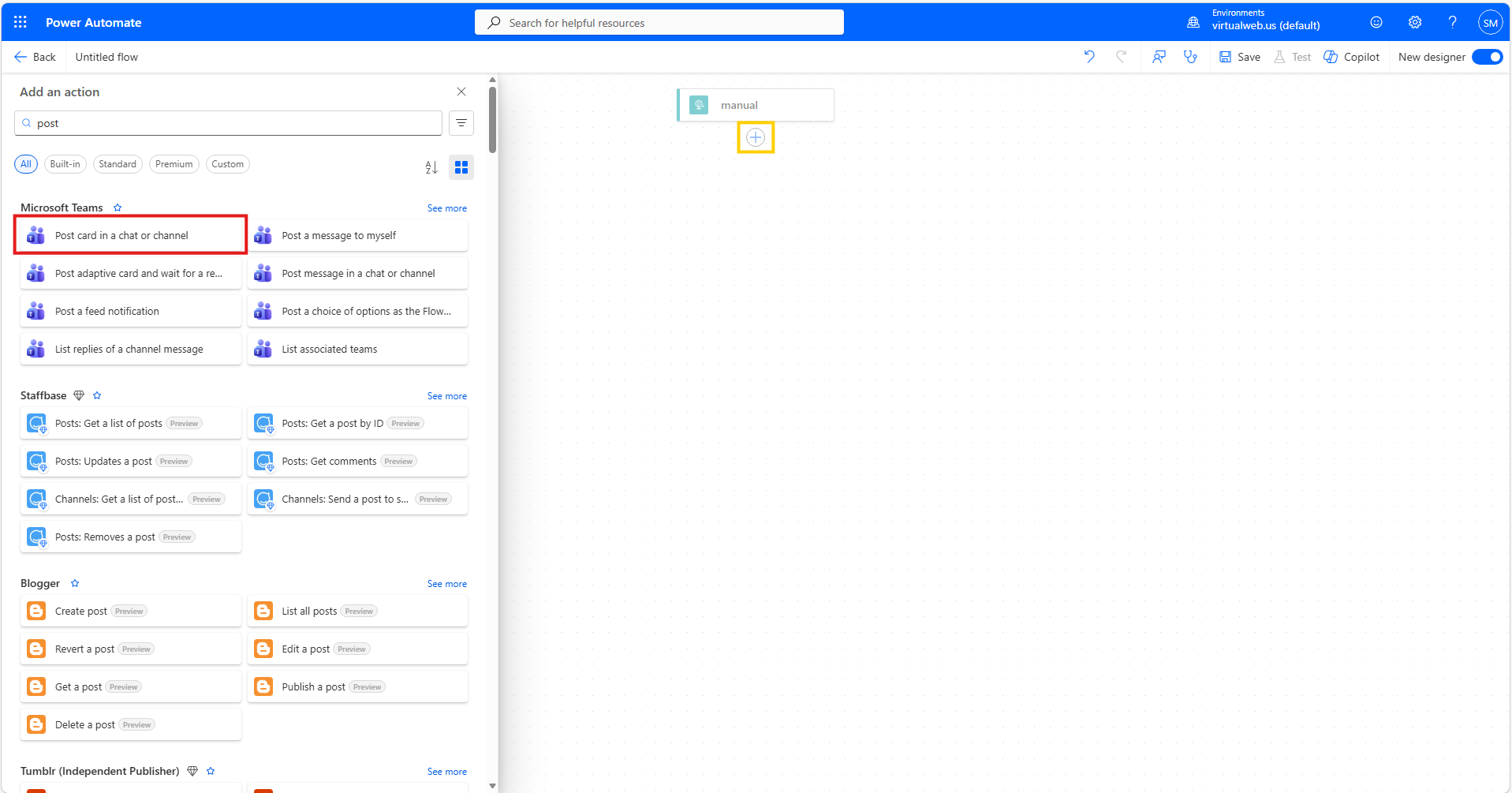
Add a new step to send the message to Teams. Search for and select Post card in a chat or channel.
Configure the action as follows, selecting the Team and Channel that will receive alerts.
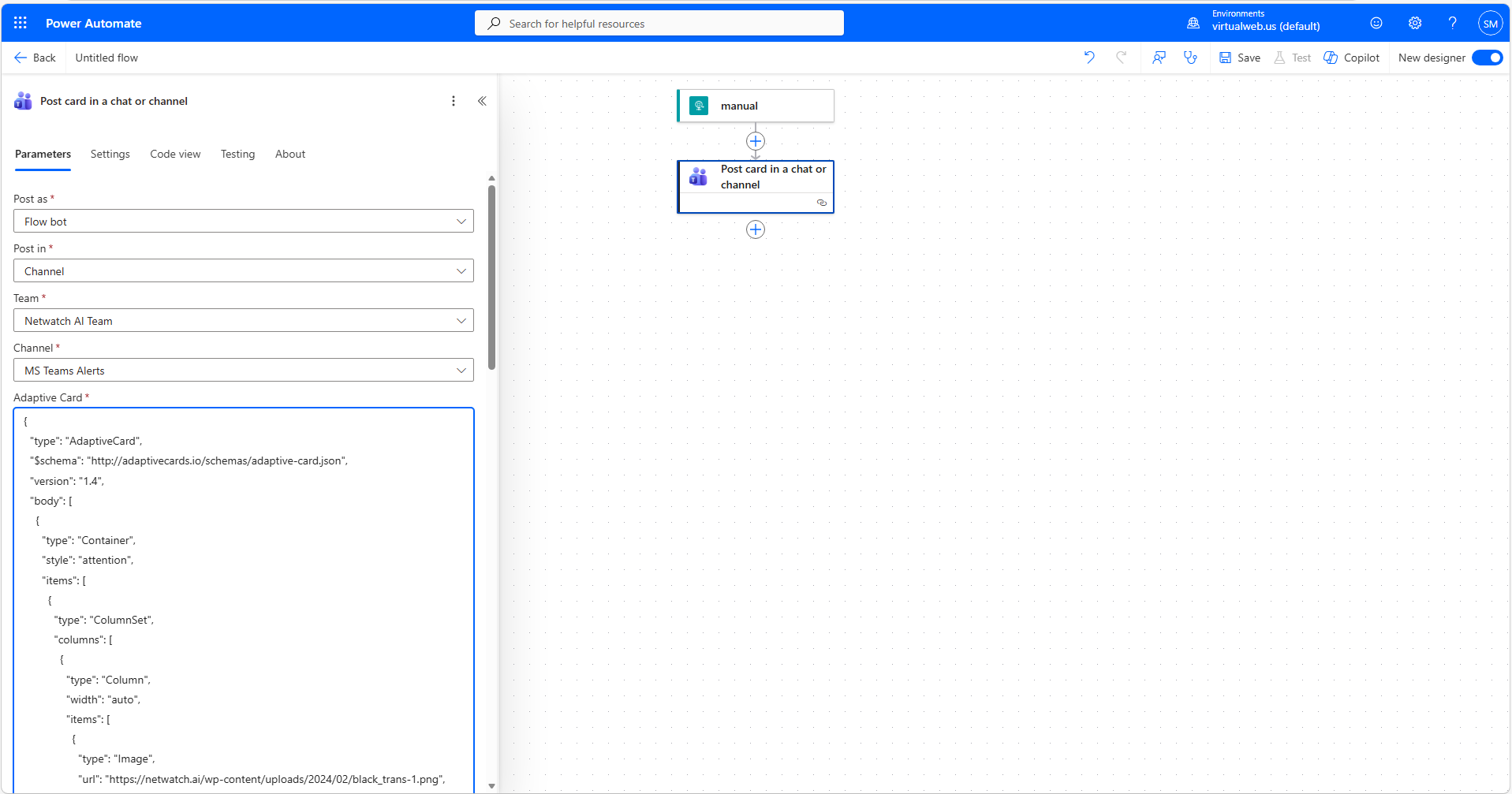
Paste the following into the Adaptive Card input:
{
  "type": "AdaptiveCard",
  "$schema": "http://adaptivecards.io/schemas/adaptive-card.json",
  "version": "1.4",
  "body": [
    {
      "type": "Container",
      "style": "attention",
      "items": [
        {
          "type": "ColumnSet",
          "columns": [
            {
              "type": "Column",
              "width": "auto",
              "items": [
                {
                  "type": "Image",
                  "url": "https://download.netwatch.ai/media/netw_Logo_blue.png",
                  "height": "30px"
                }
              ]
            },
            {
              "type": "Column",
              "width": "stretch",
              "items": [
                {
                  "type": "TextBlock",
                  "text": "Problem Alert",
                  "weight": "Bolder",
                  "size": "Large",
                  "color": "Attention"
                }
              ],
              "verticalContentAlignment": "Center"
            }
          ]
        }
      ]
    },
    {
      "type": "Container",
      "style": "emphasis",
      "items": [
        {
          "type": "FactSet",
          "facts": [
            {
              "title": "Subject",
              "value": "@{triggerBody()?['subject']}"
            },
            {
              "title": "Host",
              "value": "@{triggerBody()?['host']}"
            },
            {
              "title": "Severity",
              "value": "@{triggerBody()?['severity']}"
            },
            {
              "title": "Time",
              "value": "@{triggerBody()?['event_time']}"
            },
            {
              "title": "Message",
              "value": "@{triggerBody()?['message']}"
            }
          ]
        }
      ]
    }
  ],
  "actions": [
    {
      "type": "Action.OpenUrl",
      "title": "View Problem",
      "url": "<YOUR_NETWATCH_DASHBOARD_URL>"
    }
  ]
}
4. Save and Copy the URL
Save the flow and click the manual trigger action. Copy the generated HTTP URL.
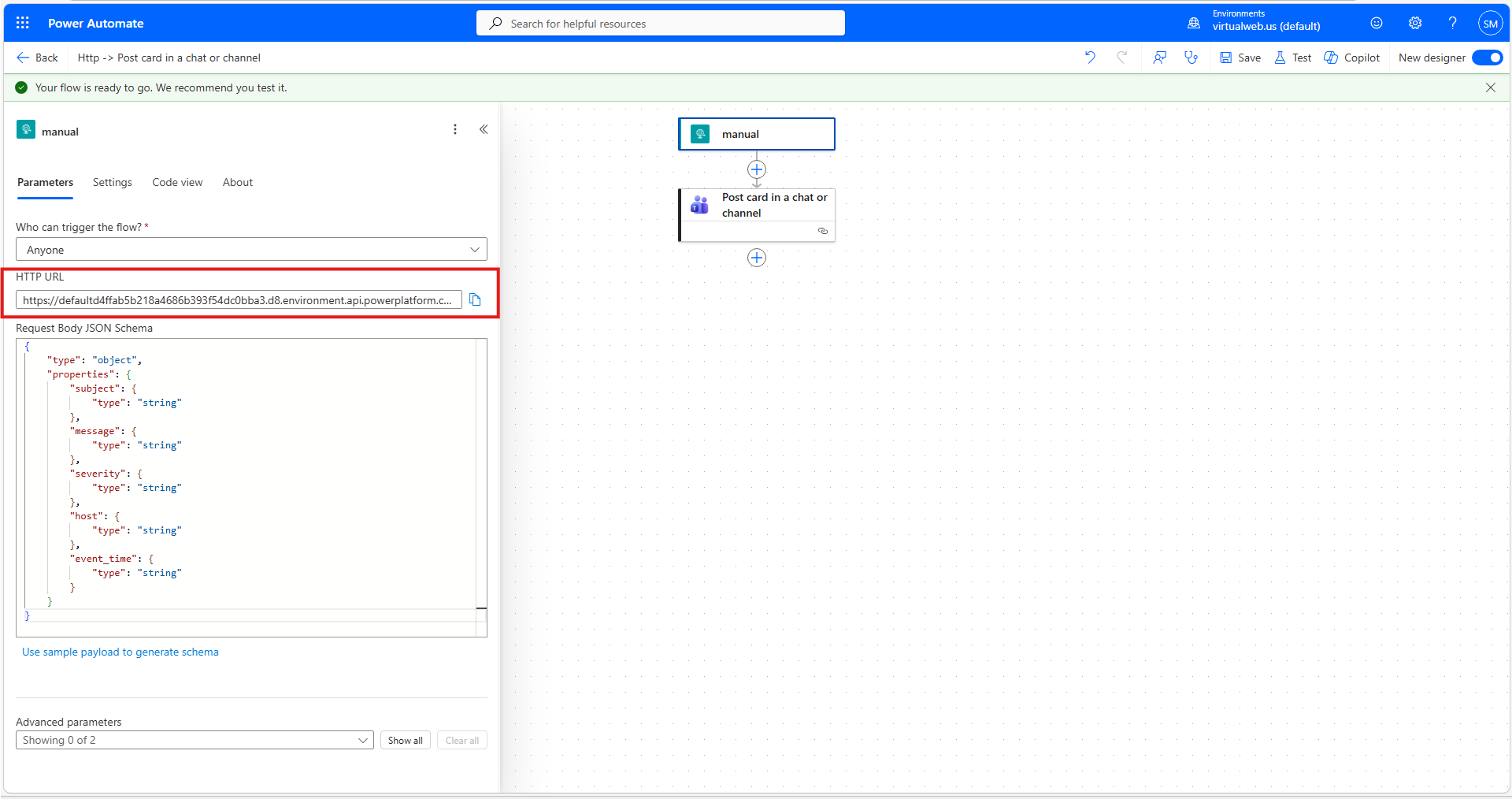
The HTTP URL will be provided to Netwatch.AI for configuration.
Netwatch OPS Tasks
5. Configure Netwatch OPS
- Log in to Netwatch OPS as an administrator.
- Navigate to Administration → Media Types.
- Import the
media_msteams.yamlmedia type. - Edit the newly created MS Teams media type.
- Replace
PLACE WEBHOOK URL HEREwith the Power Automate HTTP URL.
6. Create a Notification User
- Navigate to Users → Users.
- Create a dedicated user for Teams notifications.
- Under the Media tab, add MS Teams as the media type.
- Enter any character in the Send To field, as it cannot be left blank.
7. Configure Alert Actions
- Navigate to Configuration → Actions.
- Create an action to send notifications to the Teams user.
- Define the alert conditions and notification operations as required.
8. Validate the Integration
Trigger a test alert in Netwatch OPS and confirm the notification is received in the designated Microsoft Teams channel.