
Adding an M365 host
Add a Microsoft 365 host in Netwatch.
Overview
This guide walks you through adding a Microsoft 365 host in Netwatch using the Microsoft Graph API. Since this integration uses the API, no Watchnode or proxy is required.
Prerequisites
Before you begin, make sure you have the following values ready from your Azure App Registration:
| Macro | Description |
|---|---|
{$MS.GRAPH.CLIENT.ID} | Application (Client) ID |
{$MS.GRAPH.CLIENT.SECRET} | Client Secret Value |
{$MS.GRAPH.TENANT.ID} | Directory (Tenant) ID |
Step 1 — Create a New Host
-
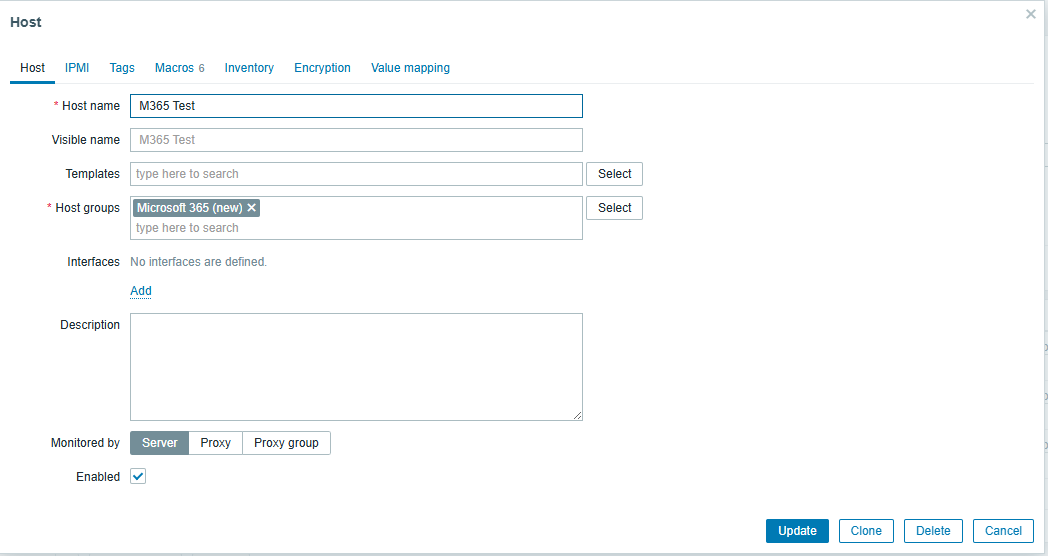
In Netwatch, navigate to Configuration → Hosts
-
Click Create host in the top-right corner
-
Fill in the Host name field (e.g.
M365 - Your Organisation) -
Under Host groups, either:
- Select an existing group (e.g.
Microsoft 365), or - Click Add new group and give it a meaningful name (e.g.
Microsoft 365)
- Select an existing group (e.g.
ℹ️ No interface is needed. Since this integration communicates via the Microsoft Graph API, you do not need to add a Watchnode or proxy.
Step 2 — Add the Required Macros
- Go to the Macros tab on the host
- Add the following three macros with their corresponding values:
{$MS.GRAPH.CLIENT.ID}      →  your-client-id
{$MS.GRAPH.CLIENT.SECRET}  →  your-client-secret
{$MS.GRAPH.TENANT.ID}      →  your-tenant-id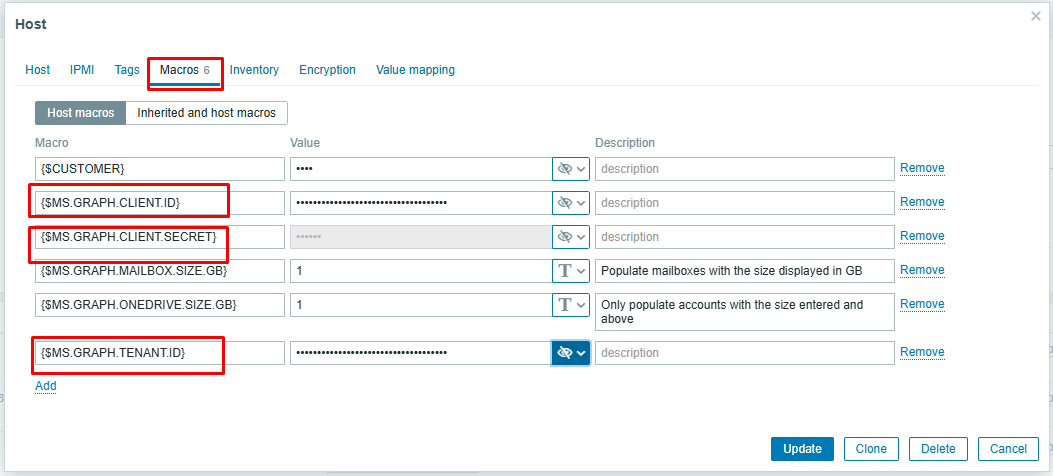
- Click Add after each macro to confirm it
Step 3 — Link the Templates
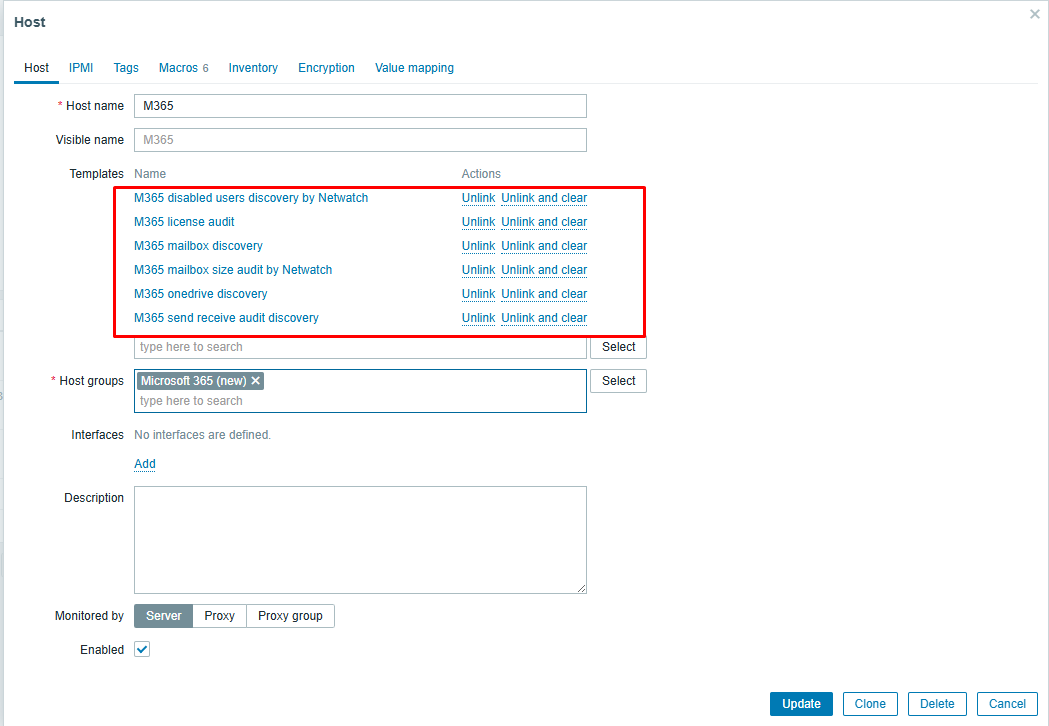
- Go to the Templates tab on the host
- Search for and add each of the following templates:
M365 disabled users discovery by NetwatchM365 license auditM365 mailbox discoveryM365 mailbox size audit by NetwatchM365 onedrive discoveryM365 send receive audit discovery
- Click Select to confirm your template selections
Step 4 — Save the Host
- Review all settings
- Click Add (or Update if editing an existing host) to save
Step 5 — Wait for Data Collection
Once the host is saved, Netwatch will begin polling the Microsoft Graph API automatically. Allow a few minutes for the first data collection cycle to complete.
You can monitor progress under Monitoring → Latest data, filtering by your new host.
✅ No Watchnode or proxy configuration is needed — all communication is handled directly via the Microsoft Graph API.
Troubleshooting
| Issue | Check |
|---|---|
| No data appearing | Verify the three macros are correct and the Azure app has the right API permissions |
| Authentication errors | Confirm the Client Secret has not expired in Azure |
| Missing items | Ensure all six templates are linked to the host |